· Guides
How to Play Grand Theft Auto V on iPhone & iPad in 2026 (Rumble & 4K Guide)
Learn how to play GTA V on iOS with controller rumble, up to 4K resolution, and 120 FPS using cloud gaming with Boosteroid.

Grand Theft Auto V (GTA V) is one of the most popular games in history, yet over a decade after its release, it is still not available on the Apple App Store. While you can play older titles like San Andreas natively, the full, console-quality Los Santos experience has remained out of reach for mobile gamers—until now.
The solution is Cloud Gaming, but unlike Fortnite or Call of Duty, GTA V is not on Xbox Cloud Gaming or GeForce Now.
To play GTA V on iOS, you need to use a service called Boosteroid.
In this guide, we’ll look at the “Standard” way most people play (and why it holds you back) before showing you the “Pro” way that turns your iPad into a high-end gaming rig.
Part 1: The “Standard” Way (Playable, But Lacks Immersion)
If you just want to load into Los Santos quickly and don’t mind missing out on some console features, you can play directly through the Safari browser. This method gets the job done but comes with Apple’s standard web restrictions.
The Limitations of Safari:
- No Rumble: Driving and shooting feel “flat” because Safari cannot communicate with your controller’s vibration motors.
- Low Resolution & FPS: Safari limits the stream quality, often locking you to lower resolutions and 60 FPS. You won’t get the sharpness or fluidity your device is actually capable of displaying.
- Screen Clutter: Safari does not support proper full screen, so the browser navigation bar and iOS status bar often remain visible during gameplay, shrinking your view and breaking immersion.
Step-by-Step Guide for Safari:
- Sign Up for Boosteroid: Create an account at Boosteroid.com. You will need an active subscription (GTA V is not free to stream).
- Own the Game: Ensure you own a copy of Grand Theft Auto V on Steam, Epic Games Store, or Rockstar Launcher.
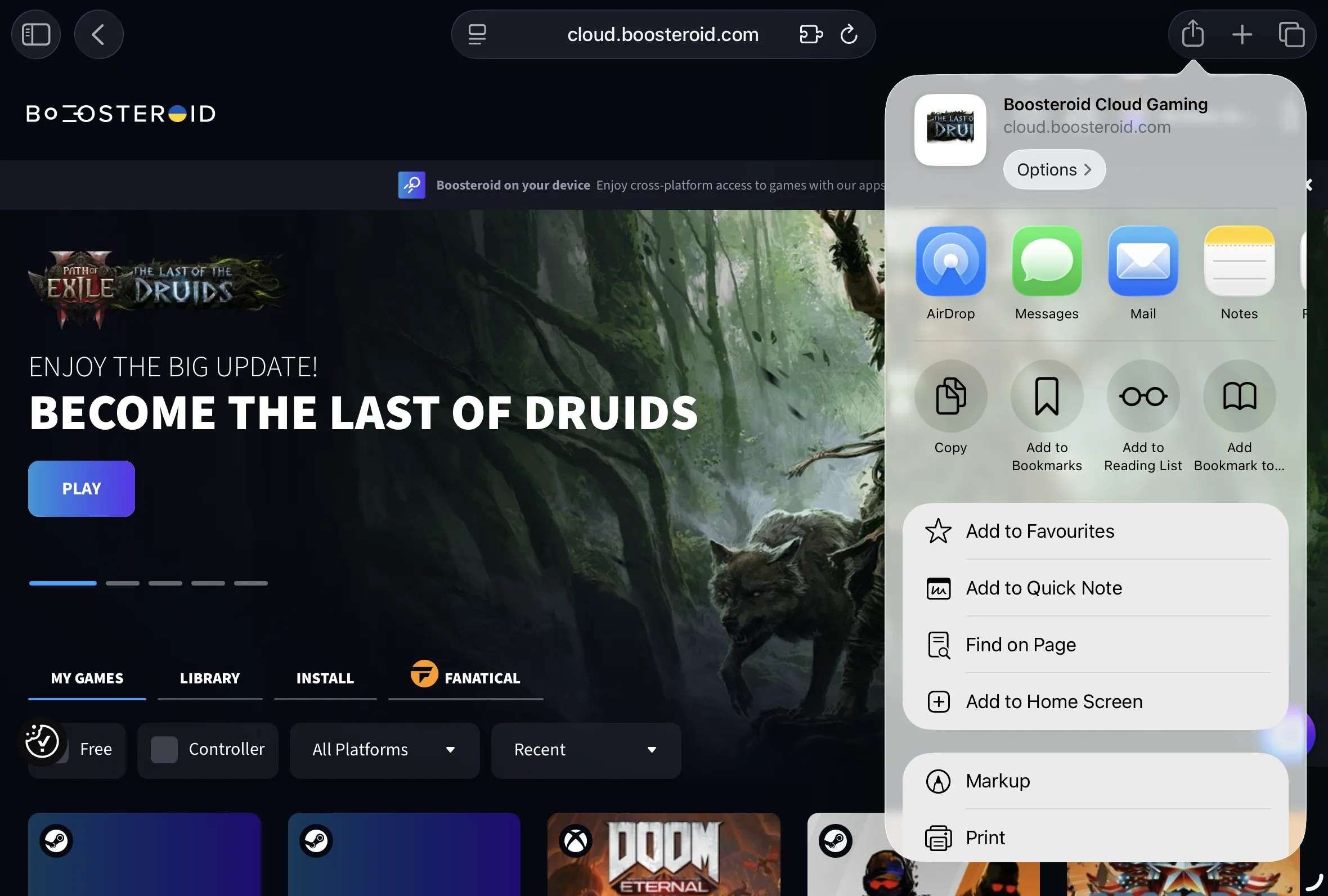
- Launch via Safari: Open Safari on your iPhone/iPad and log in to Boosteroid.
- Add to Home Screen: Tap the Share Button and select “Add to Home Screen” to create a shortcut.
- Play: Launch the shortcut, search for GTA V, and sign in to your Steam/Epic account to start playing.
Part 2: The “Pro” Way (Console Experience on Mobile)
If you want your iPhone or iPad to feel like a portable PlayStation or Xbox, the CloudGear app is the superior choice. It is a specialized browser built specifically to bypass Safari’s gaming limitations.
Why use this method?
- Clutter-Free Interface: Unlike Safari, CloudGear provides an edge-to-edge view with a hidden navigation bar you can reveal with intuitive gestures. It removes all distractions so you can focus entirely on the game.
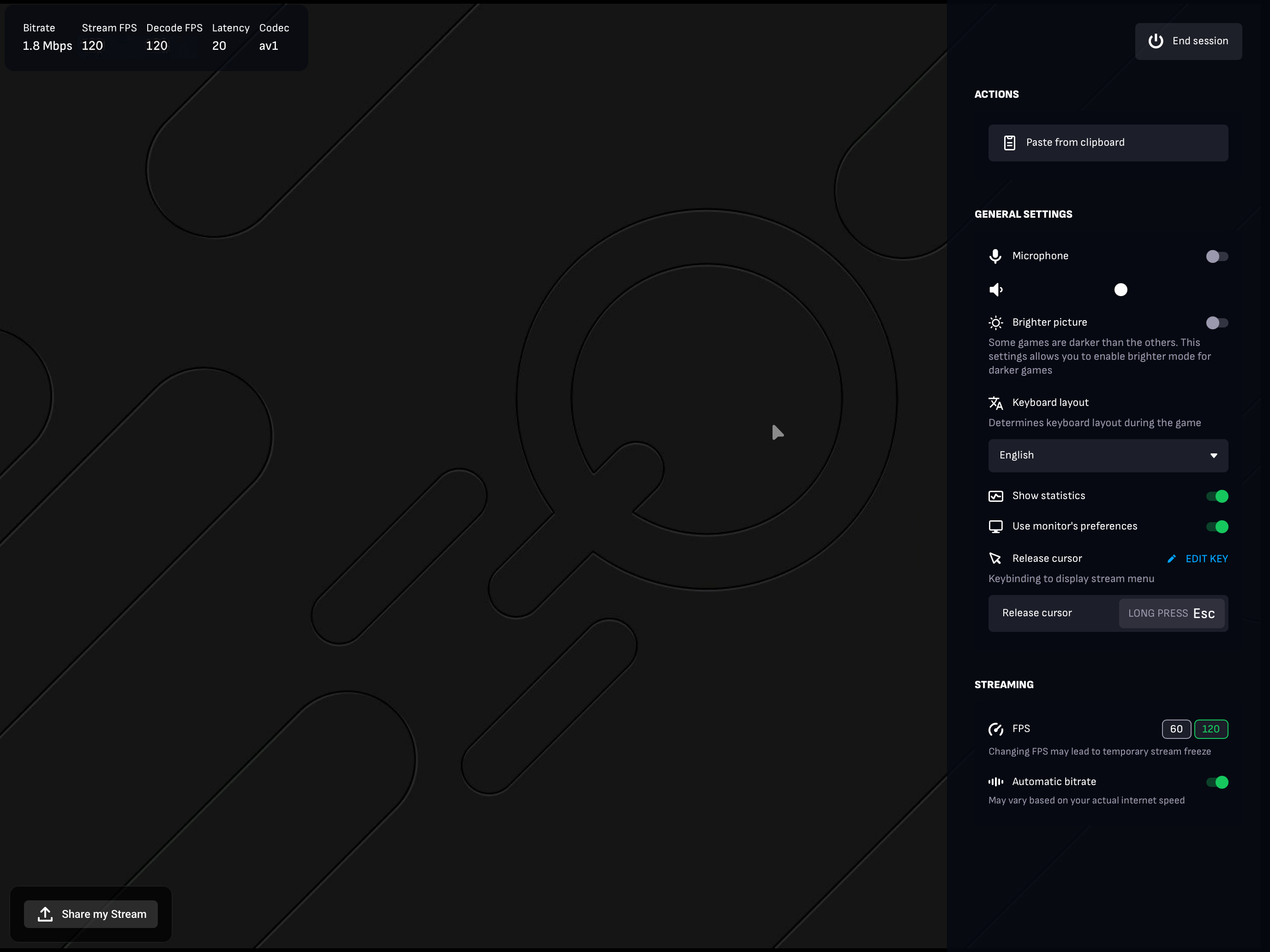
- Custom Resolution & 120 FPS: CloudGear lets you force any custom resolution to perfectly match your iPhone or iPad screen (maximizing every pixel) and supports streaming at up to 120 FPS for buttery-smooth gameplay.
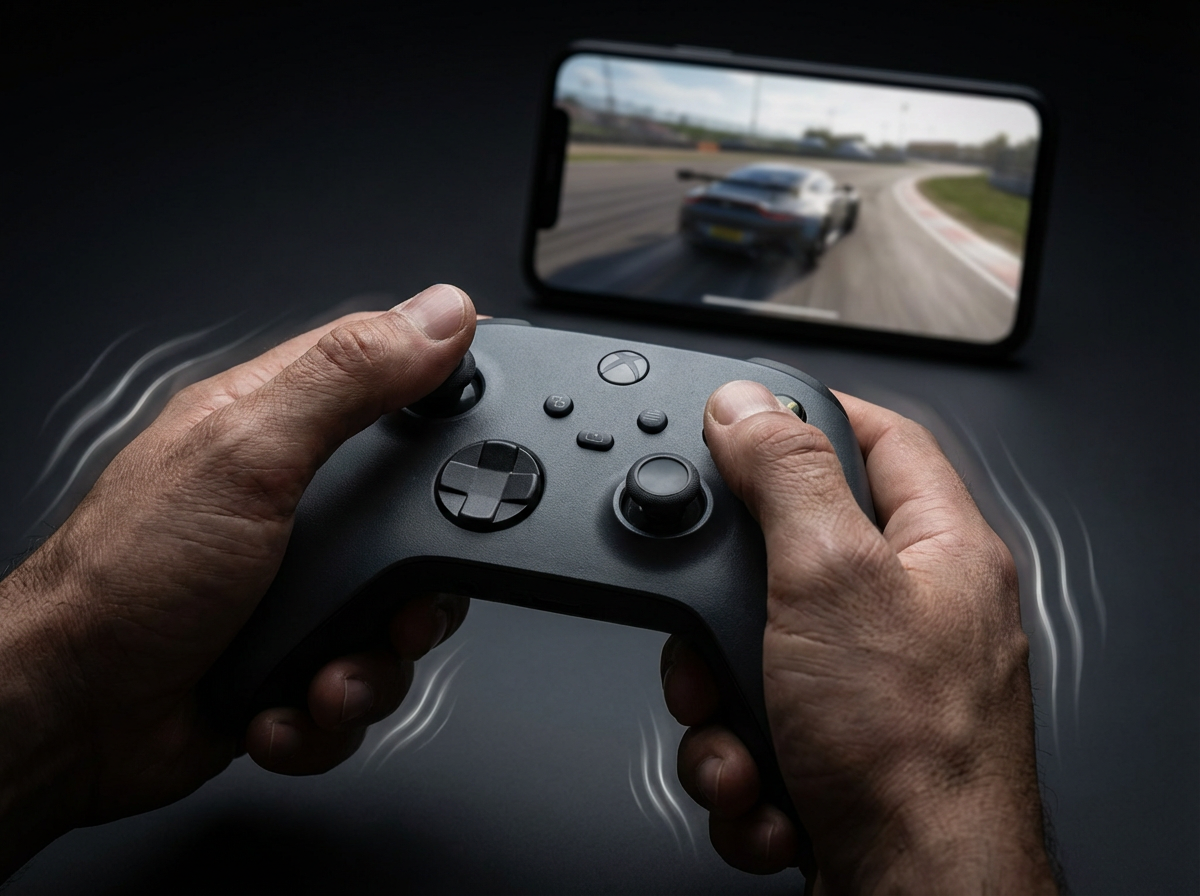
- Controller Rumble: Feel every car crash, gunshot, and explosion. CloudGear enables native rumble for supported controllers (Xbox, PS5).
- Haptic Fallback: Using a mobile controller like a Backbone that lacks motors? CloudGear uses your iPhone’s built-in haptic engine to simulate controller vibration, so you still get tactile feedback.
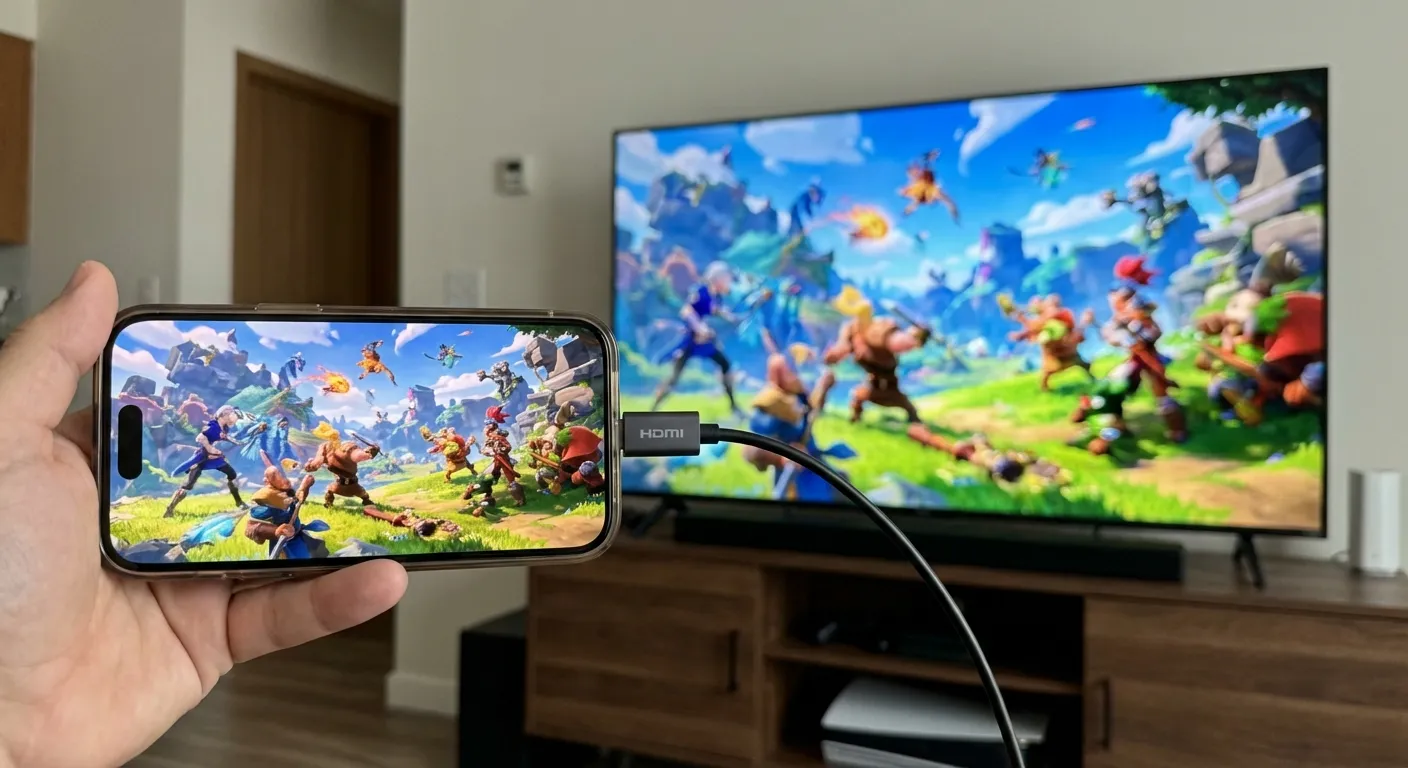
- External Monitor Support: Plug your device into a TV via HDMI, and CloudGear outputs a clean, full-screen signal (no black bars), effectively turning your phone into a console.
Step-by-Step Guide:
- Download CloudGear: Get the app from the App Store.
- Select Boosteroid: Open the app and tap the Boosteroid tile.
- Log In: Sign in to your Boosteroid account.
- Configure Resolution: Before launching the game, tap the three-dot menu in the CloudGear navigation bar. Select your desired Stream Resolution (e.g., set to 4K for iPad Pro or Auto to match your screen).
- Launch GTA V: Search for Grand Theft Auto V and click Install & Play.
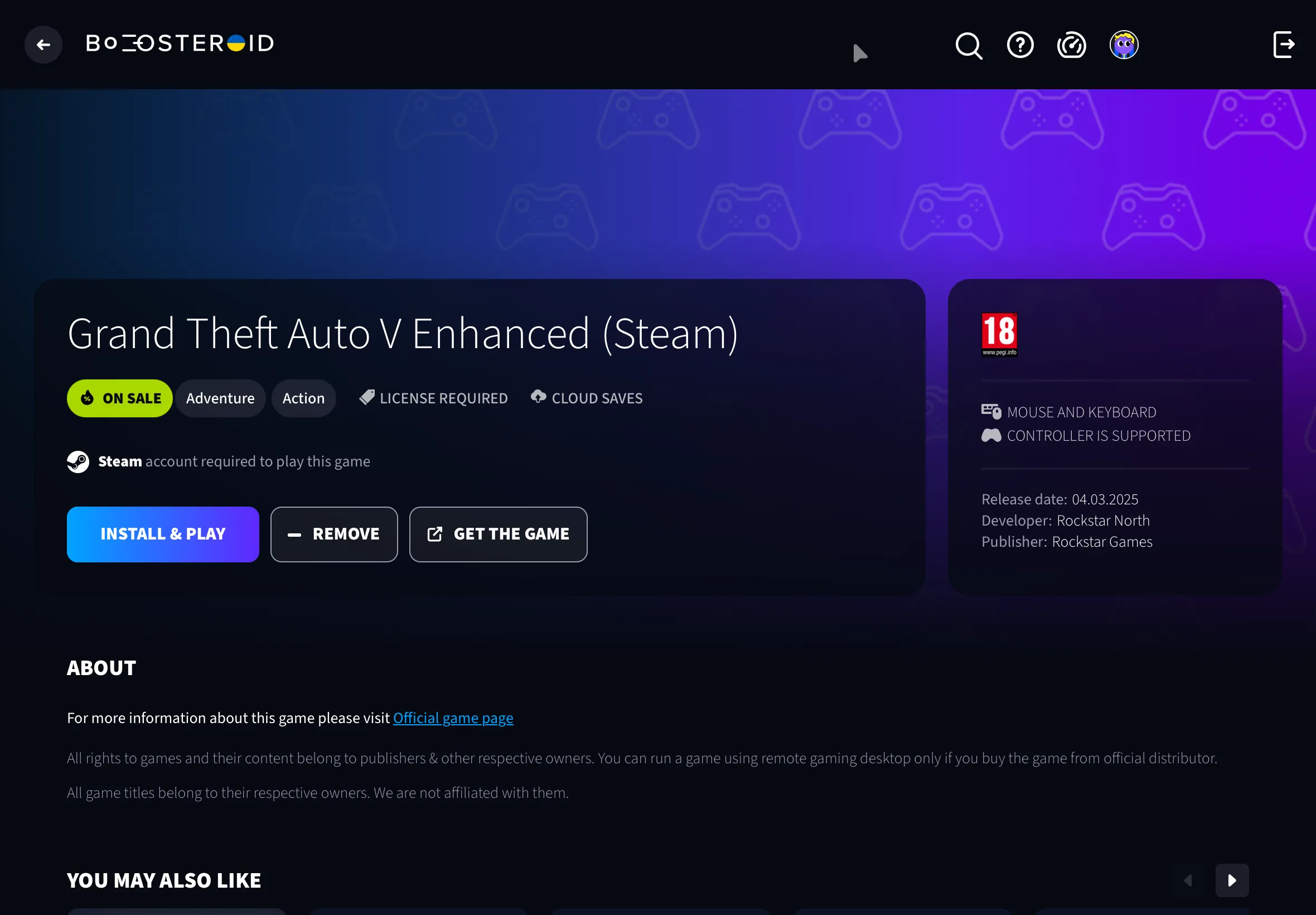
- Enjoy: The game will launch in Immersive Full Screen mode automatically with rumble enabled.
Pro Tip (Language Check): When the game launcher (e.g., Steam) opens inside the stream, check the language settings before you click Play on the game itself.
Open the Steam Preferences or Game Properties and ensure the language is set to English (or your preferred language). This prevents the game from accidentally launching in the wrong region’s language. 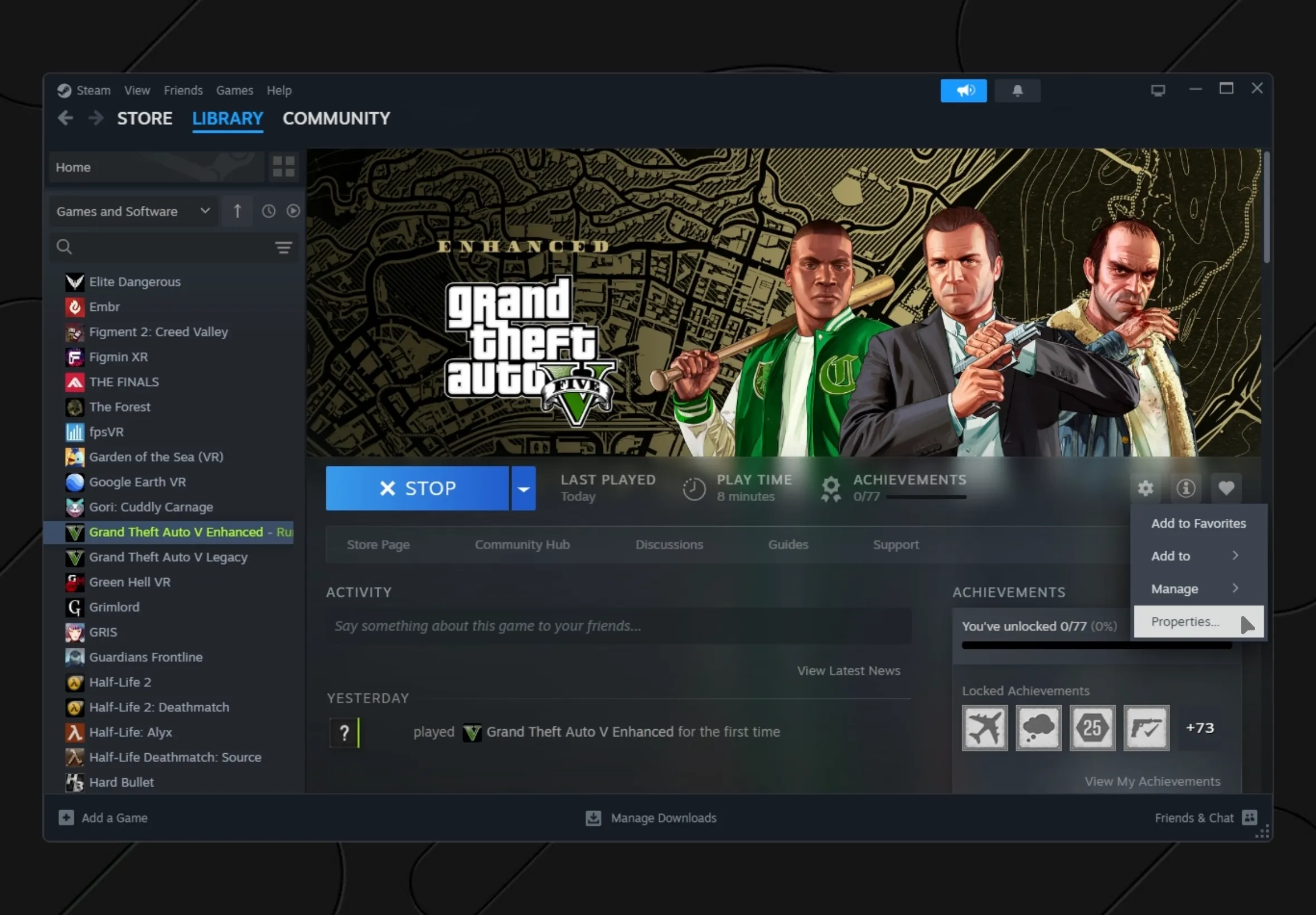
Part 3: Optimizing Your GTA V Setup
Since GTA V is a fast-paced open-world game, your setup can make a huge difference in performance.
1. Connection is Key
- 5GHz WiFi: Essential for low latency. Avoid 2.4GHz networks as they will cause stuttering while driving fast.
- Ethernet: If playing on an iPad, a USB-C Ethernet adapter provides the smoothest, lag-free experience.
2. Controller Settings
- Rumble: Ensure vibration is enabled in the GTA V in-game settings menu (Settings > Gamepad > Vibration: On). CloudGear will handle the rest.
- Recommended Controllers:
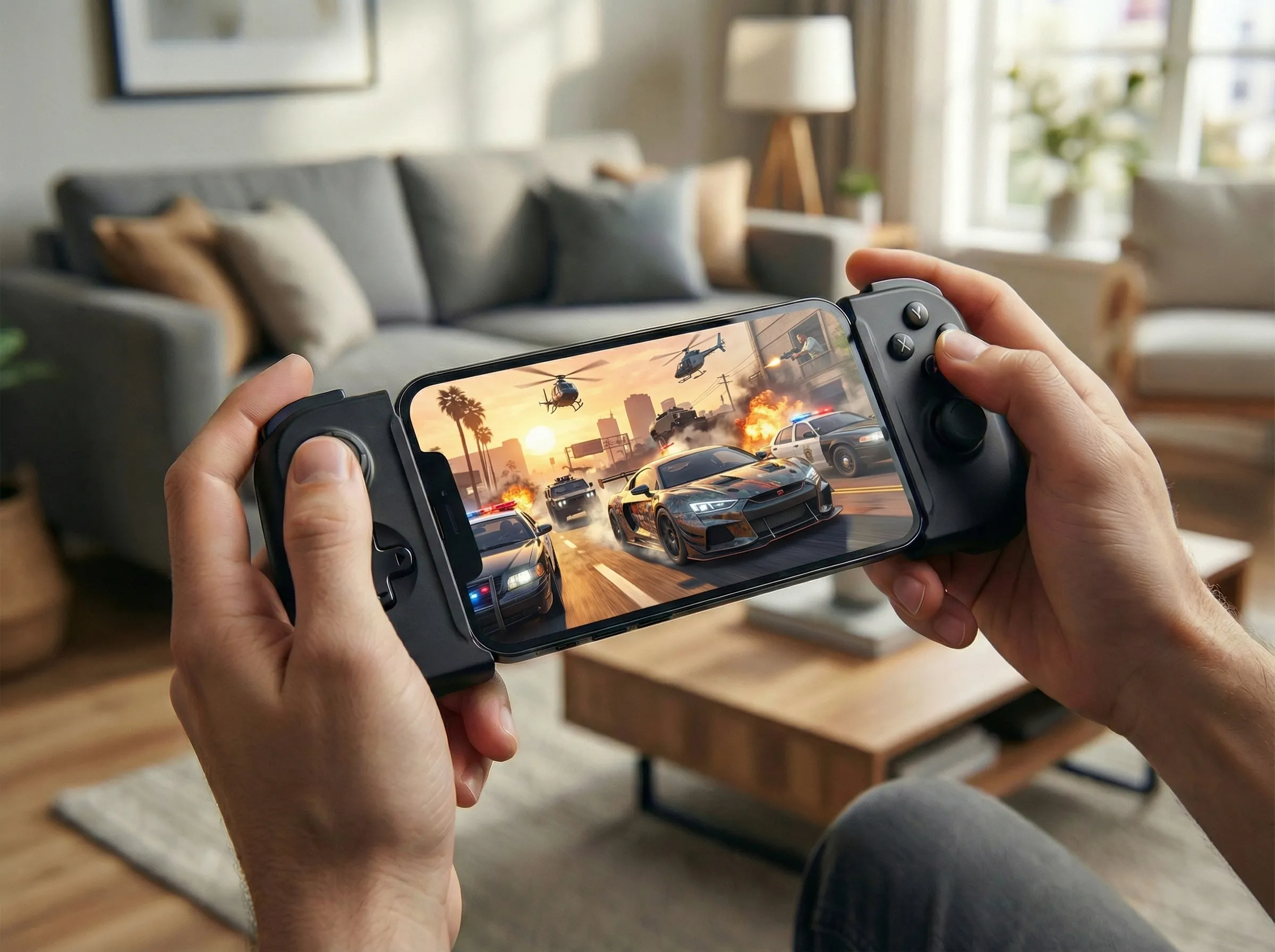
- iPhone: Backbone One (with CloudGear’s Haptic Fallback) or GameSir G8 Plus.
- iPad: Xbox Series X/S or DualSense controller (for native strong rumble).
4. The “Console” Mode
Did you know your iPhone or iPad can output video to a TV?
- Plug a USB-C to HDMI adapter into your device.
- Connect it to your TV.
- Open CloudGear and launch GTA V.
- The app will output a full-screen signal to your TV, effectively turning your phone into an Xbox.
Conclusion
Playing GTA V on an iPhone was a dream for years, but cloud gaming has made it a reality. While you can play via Safari, you miss out on the tactile feedback and immersion that makes Los Santos feel alive.
For the definitive mobile experience with haptic feedback, edge-to-edge visuals, and TV-out support, CloudGear transforms your iOS device into the ultimate portable console.