· Guides
Turn Your iPhone or iPad into a Portable Gaming Console (2026 Guide)
Skip the Steam Deck - connect your iPhone or iPad to any TV for console-quality cloud gaming with full controller and mouse/keyboard support.
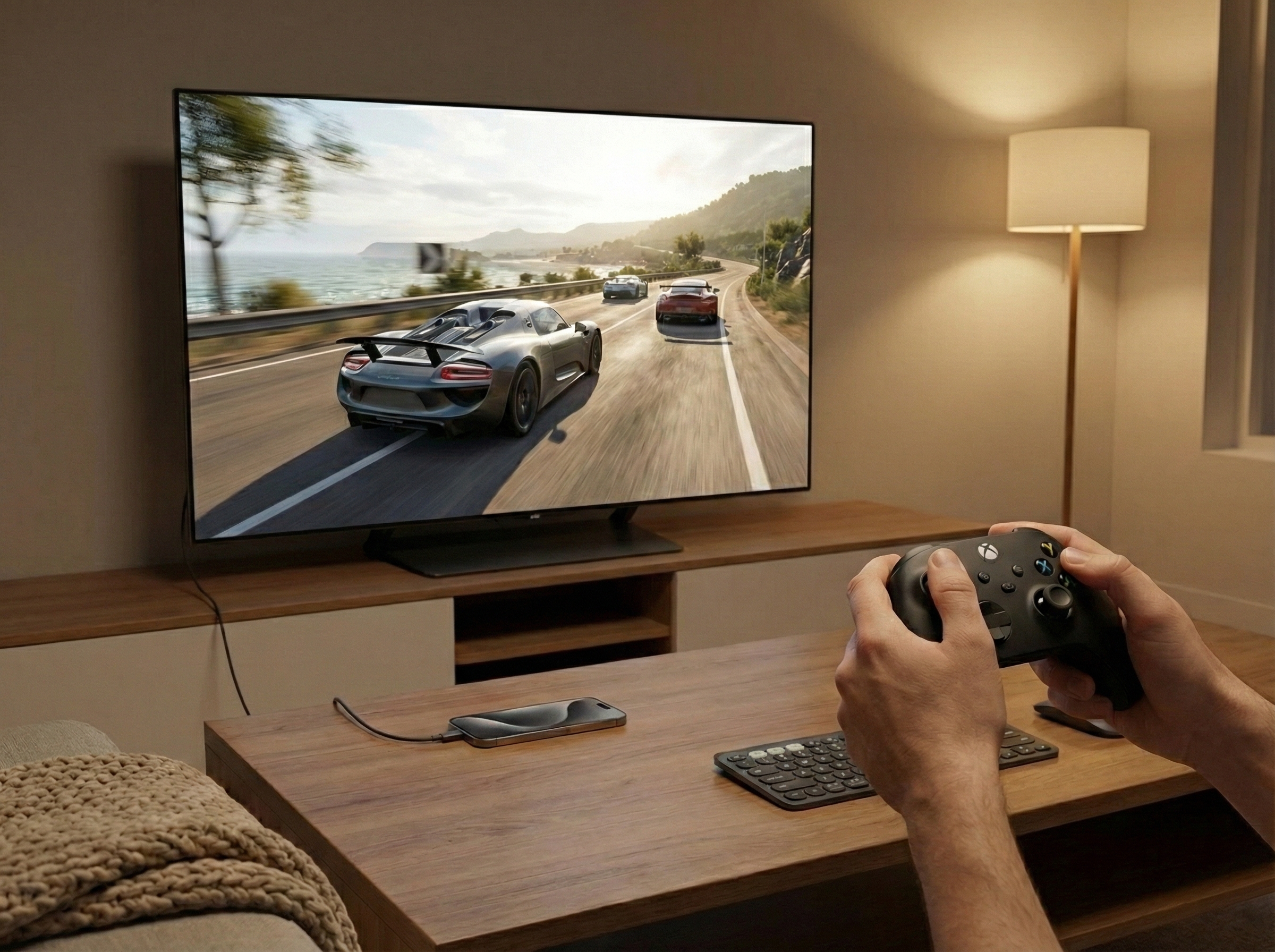
Dedicated gaming handhelds like the Steam Deck ($549+) and Nintendo Switch ($349) are popular, but they’re expensive. A proper PC gaming rig? That can run you $1,500 to $2,500 or more.
Here’s the thing: if you already own an iPhone or iPad, you can get the same big-screen gaming experience for the cost of a cable or adapter—as little as $15.
As MacStories recently put it, “The iPad Finally Becomes a Gaming Console.” This guide shows you how—transforming your iOS device into a full gaming console, or even a portable PC gaming setup with mouse and keyboard support.
Part 1: What You Need
To turn your iPhone or iPad into a gaming console, you’ll need:
- An iPhone or iPad with USB-C
- A display connection:
- A USB-C cable (if your monitor has USB-C video input), OR
- A USB-C to HDMI adapter (for TVs and monitors with HDMI)
- A TV or monitor
- Input device: A Bluetooth controller OR Bluetooth mouse and keyboard
- CloudGear app from the App Store
That’s it. No special hardware, no expensive console—just your existing device and a way to connect it to a screen.
Part 2: Connection Options
Direct USB-C Connection (Simplest)
If your monitor supports USB-C video input, you don’t need an adapter at all. Just use a standard USB-C cable—plug one end into your iPhone or iPad and the other into your monitor. Done.
This is the cleanest setup: one cable, no dongles, no clutter.
USB-C to HDMI Adapters
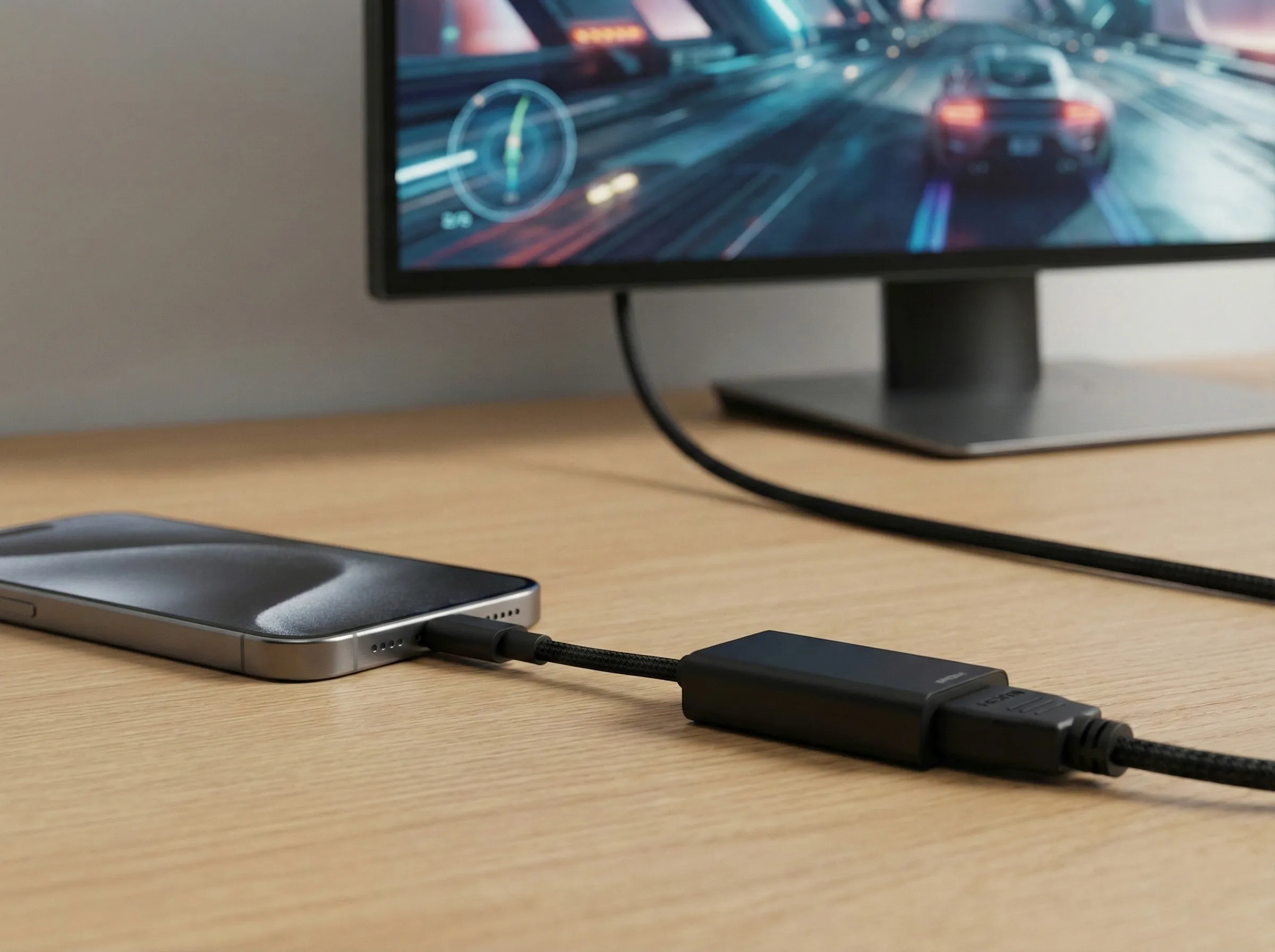
For TVs and most monitors that only have HDMI inputs, you’ll need an adapter. Here are three options that are confirmed to work:
1. Budget Option: Belkin Connect USB-C to HDMI Adapter
- Price: ~$50
- Features: 4K@60Hz, HDR10+, compact 7.7-inch cable
- Best for: Simple video output with no extras
- View on Belkin
2. Mid-Range: Satechi Multiport Pro Adapter V2
- Price: ~$80
- Features: HDMI 4K@60Hz + Gigabit Ethernet + USB ports + 100W passthrough charging
- Best for: Wired ethernet for lowest latency + charging while you play
- View on Apple Store
3. Full Hub: Anker 555 USB-C Hub (8-in-1)
- Price: ~$70–90
- Features: HDMI 4K@60Hz + Gigabit Ethernet + SD/microSD + USB-A/USB-C ports + 85W passthrough charging
- Best for: Maximum connectivity, all-in-one travel setup
- View on Anker
Part 3: Setting Up Your “Console”
Once you have your hardware ready, setup takes just a few minutes:
Download CloudGear from the App Store on your iPhone or iPad.
Connect your device to the display. Use your USB-C cable (for USB-C monitors) or plug in your adapter and connect an HDMI cable to your TV.
Open CloudGear. The app automatically detects the external display.
Enable Full Screen mode. Go to Settings and select Full Screen (Exclusive) for the external display. This dedicates the entire TV screen to your game.
Choose your cloud gaming service. CloudGear works with GeForce NOW, Xbox Cloud Gaming, Boosteroid, and other services.
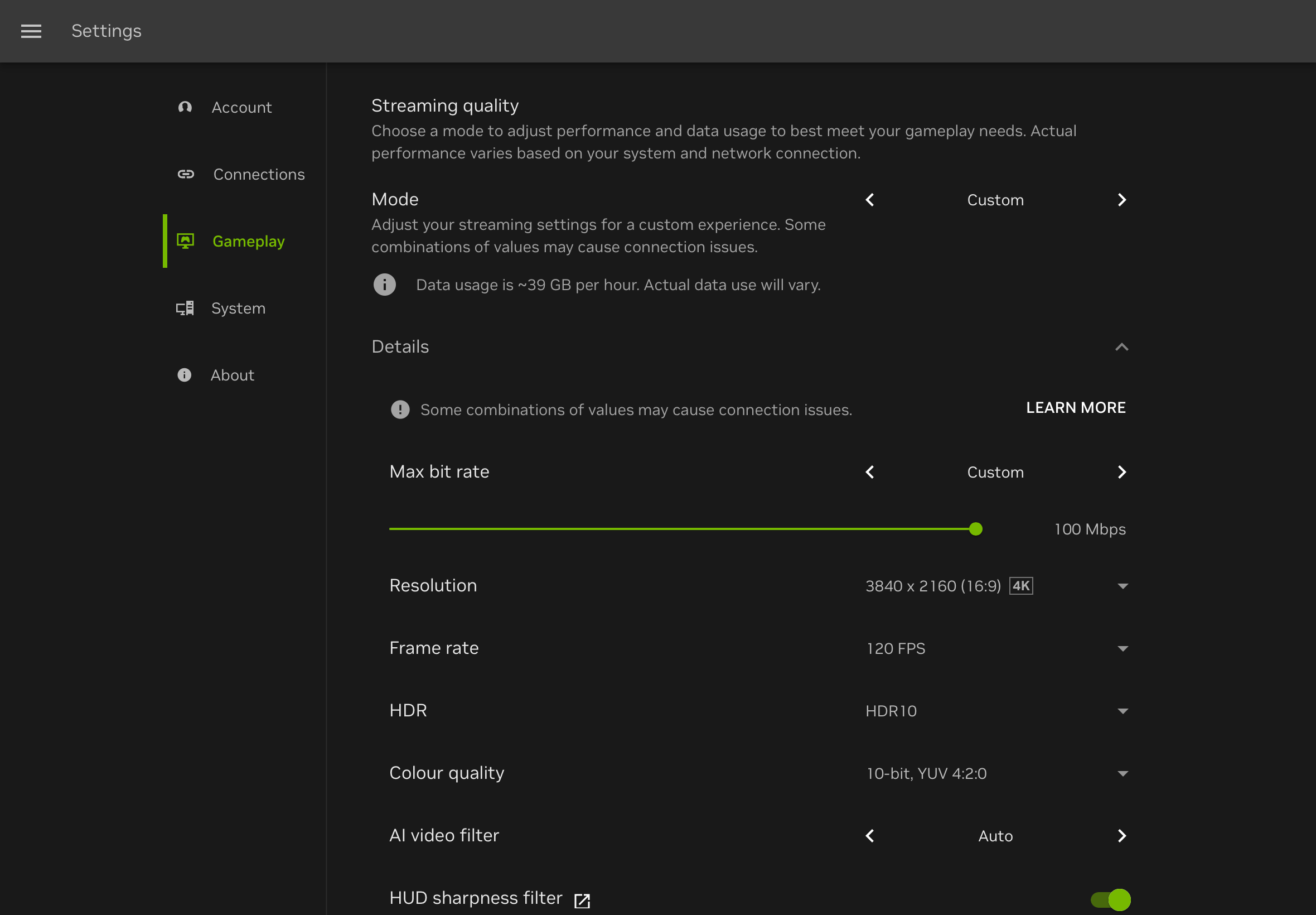
Set your stream resolution to match your display. Ideally, select a resolution that matches your TV or monitor (e.g., 1920x1080 for a 1080p display, 3840x2160 for 4K). At minimum, ensure the aspect ratio matches—most displays are 16:9.
- GeForce NOW: Open the GFN web app, go to Settings > Gameplay, and select your resolution.
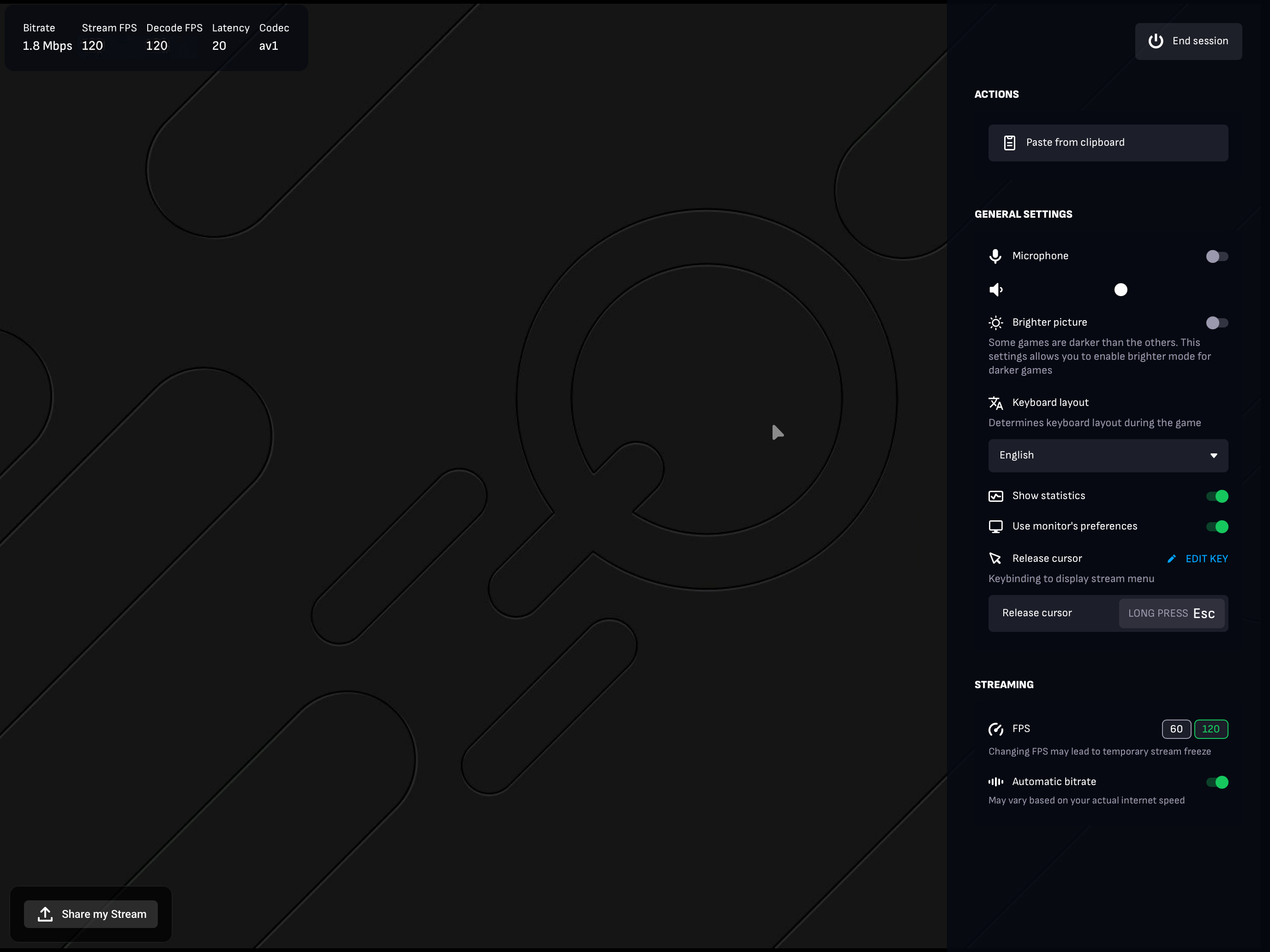
- Boosteroid: Open the CloudGear menu and select your resolution under “Stream Resolution”.
- Xbox Cloud Gaming: No configuration needed—it always streams at 16:9.
Connect your controller or mouse and keyboard via Bluetooth.
Launch a game. The video appears on your TV or monitor in full screen, while your iPhone/iPad screen dims automatically to save battery.
You now have a fully functional gaming console.
Part 4: The PC Gaming Experience
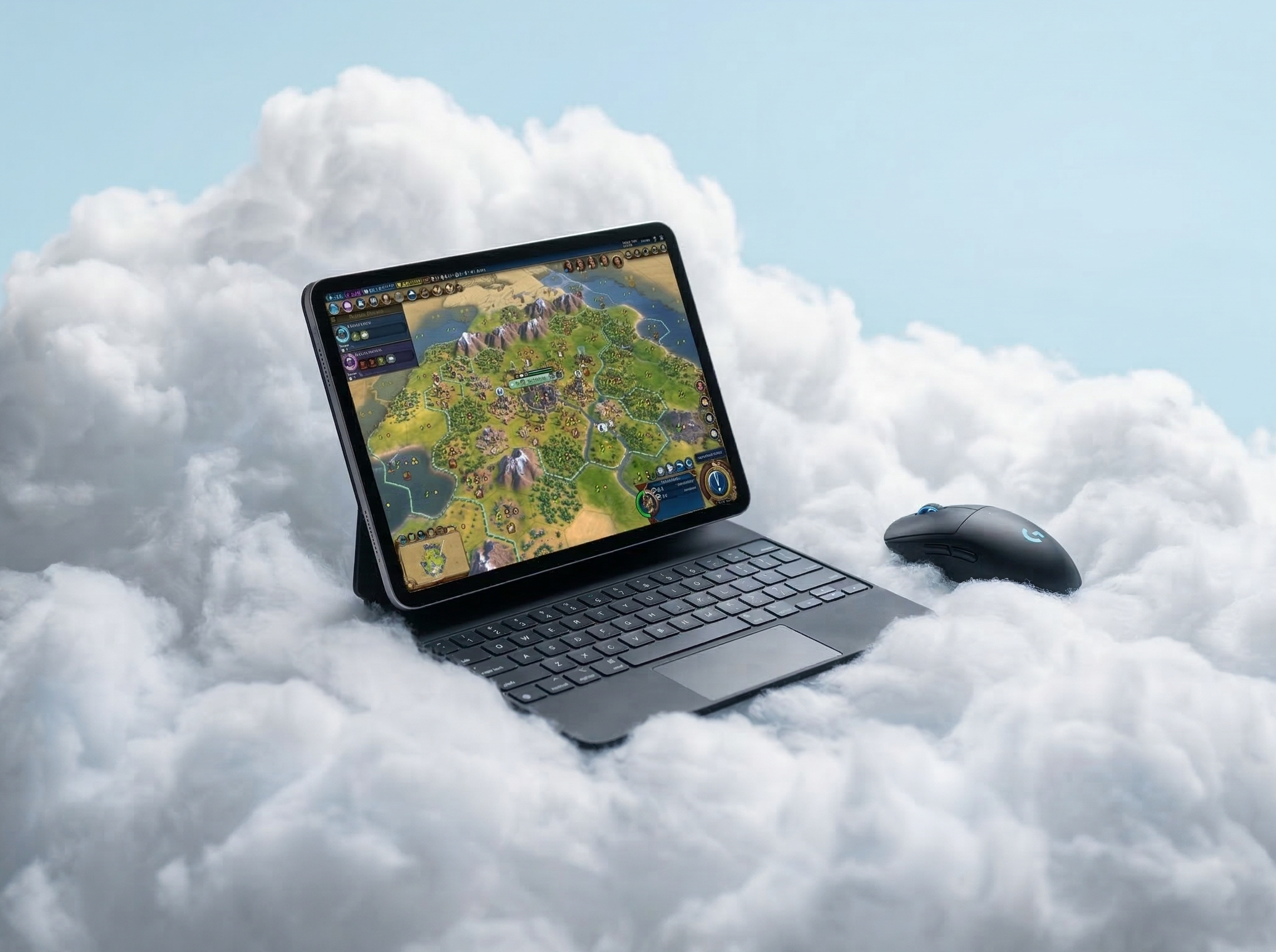
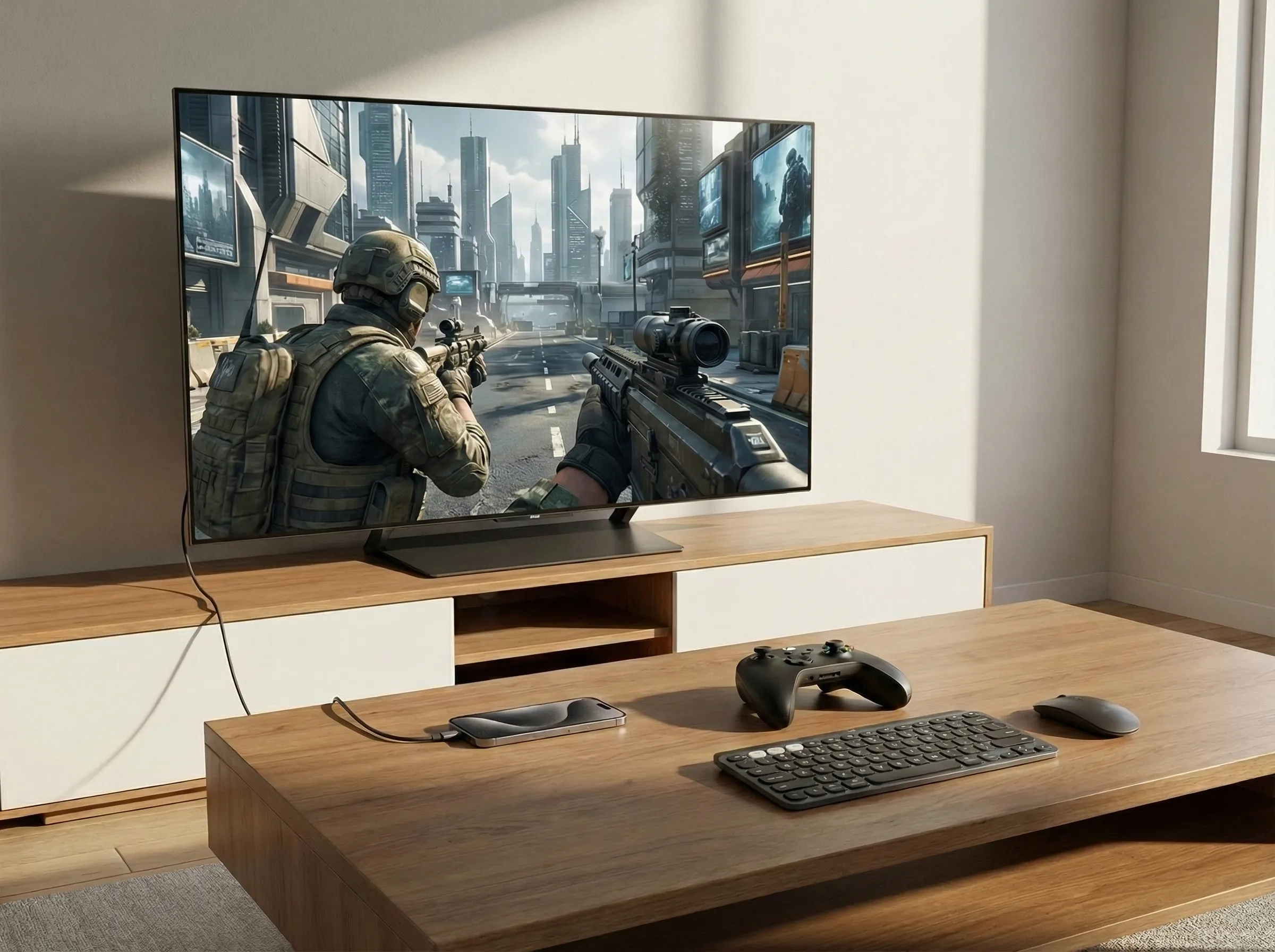
One of the most powerful features of this setup is full mouse and keyboard support—which means you can play FPS games like you’re sitting at a high-end gaming PC.
Connect a Bluetooth mouse and keyboard to your iPhone or iPad, and games like Counter-Strike, Battlefield, or Call of Duty play exactly as they would on a $2,000 gaming rig. That’s because they are running on powerful cloud hardware—your iOS device is just the window.
Use peripherals you already own. No special gaming keyboard required, no additional setup. Just connect and play.
Part 5: Why This Works Better Than You’d Expect
Here’s what makes an iPhone or iPad a legitimate gaming platform when connected to an external display:
Immersive Full Screen: The game renders exclusively on your TV or monitor while your device screen dims to save battery. Apple Silicon handles real-time hardware decoding of high-resolution video effortlessly—desktop-class performance in a device that fits in your pocket, outputting to any display you choose.
HDR Support: HDR10 output on supported TVs for richer colors and contrast.
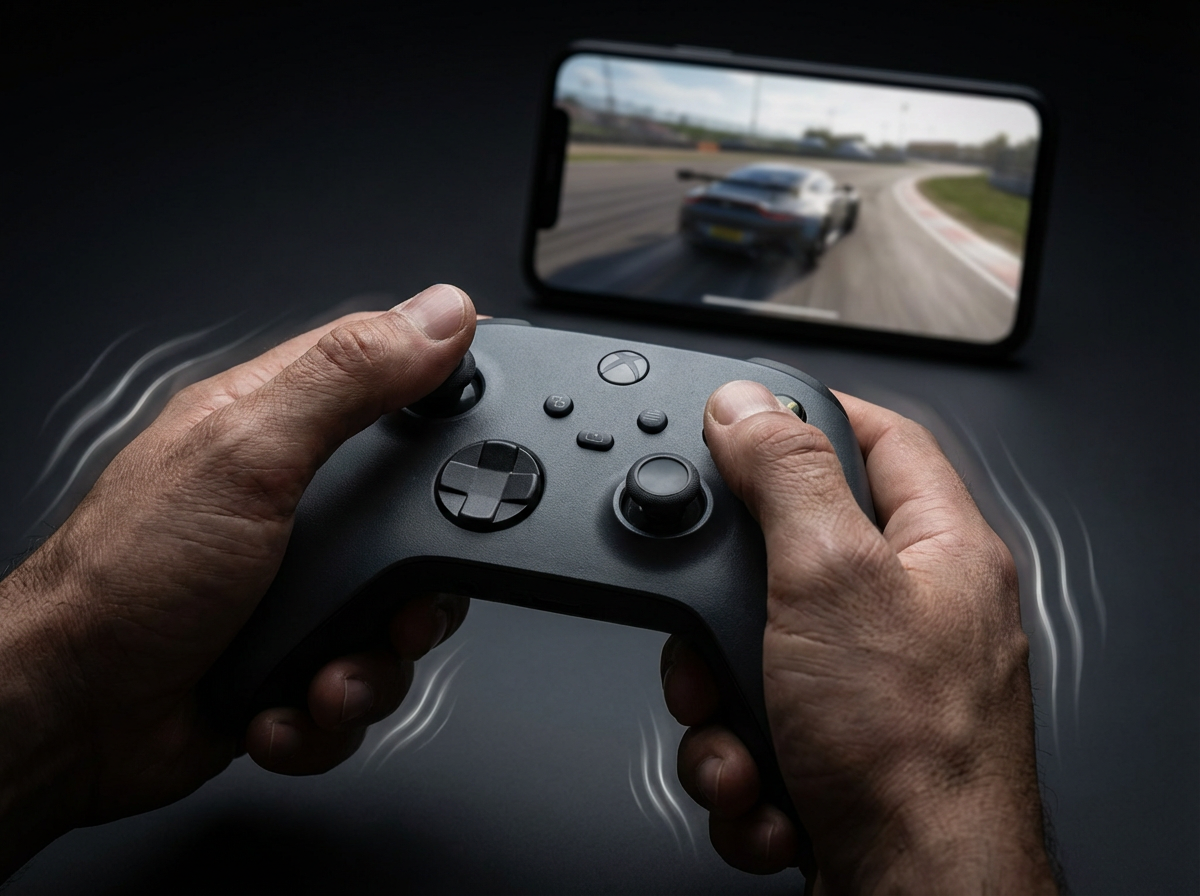
Controller Rumble: Native vibration support for Xbox, PlayStation and other supported controllers. Feel every explosion, every engine rev.
Mouse & Keyboard: Full MnK support for precision gaming. Play FPS titles like you would on a PC.
Surround Sound: Stereo, 5.1, or 7.1 audio output depending on your setup.
Part 6: Cost Comparison
Let’s put the numbers side by side:
| Setup | Approx. Cost | Notes |
|---|---|---|
| High-End Gaming PC | $1,500–$2,500+ | RTX 4080/4090, dedicated desk, ongoing maintenance |
| Steam Deck OLED | $549–$649 | Built-in 7.7” screen, native games only |
| Nintendo Switch OLED | $349 | Built-in 7” screen, Nintendo library only |
| iPhone/iPad + USB-C Cable | $15–$30 | If your monitor has USB-C input |
| iPhone/iPad + HDMI Adapter | $50–$100 | For TVs and HDMI monitors |
If you already own an iPhone or iPad, you’re potentially $500 to $2,000+ ahead—and you get access to full PC game libraries through cloud gaming services.
Part 7: Optimizing Your Setup
For the best experience, keep these tips in mind:
Network: Use a 5GHz WiFi connection. For the absolute lowest latency, use a hub with an Ethernet port for a wired connection.
Power: Long gaming sessions will drain your battery. Use an adapter or hub with passthrough charging to keep your device powered while you play.
Controllers: Xbox Series X/S controllers and PS5 DualSense controllers both work great and support native rumble feedback.
Mouse & Keyboard: Any Bluetooth mouse and keyboard will work. Pair them in your device’s Bluetooth settings before launching a game.
Conclusion
You don’t need to spend hundreds of dollars on a Steam Deck or thousands on a gaming PC. If you have an iPhone or iPad with USB-C, you already have the hardware for a full console gaming experience—you just need a cable or adapter to connect it to your TV.
With controller support, mouse and keyboard input, and cloud gaming services delivering full PC game libraries, your iOS device can handle everything from casual gaming to competitive FPS matches.