· Guides
How to Play World of Warcraft on iPad in 2026
Learn how to play WoW on iPad with full mouse support using cloud gaming with GeForce NOW and Boosteroid.
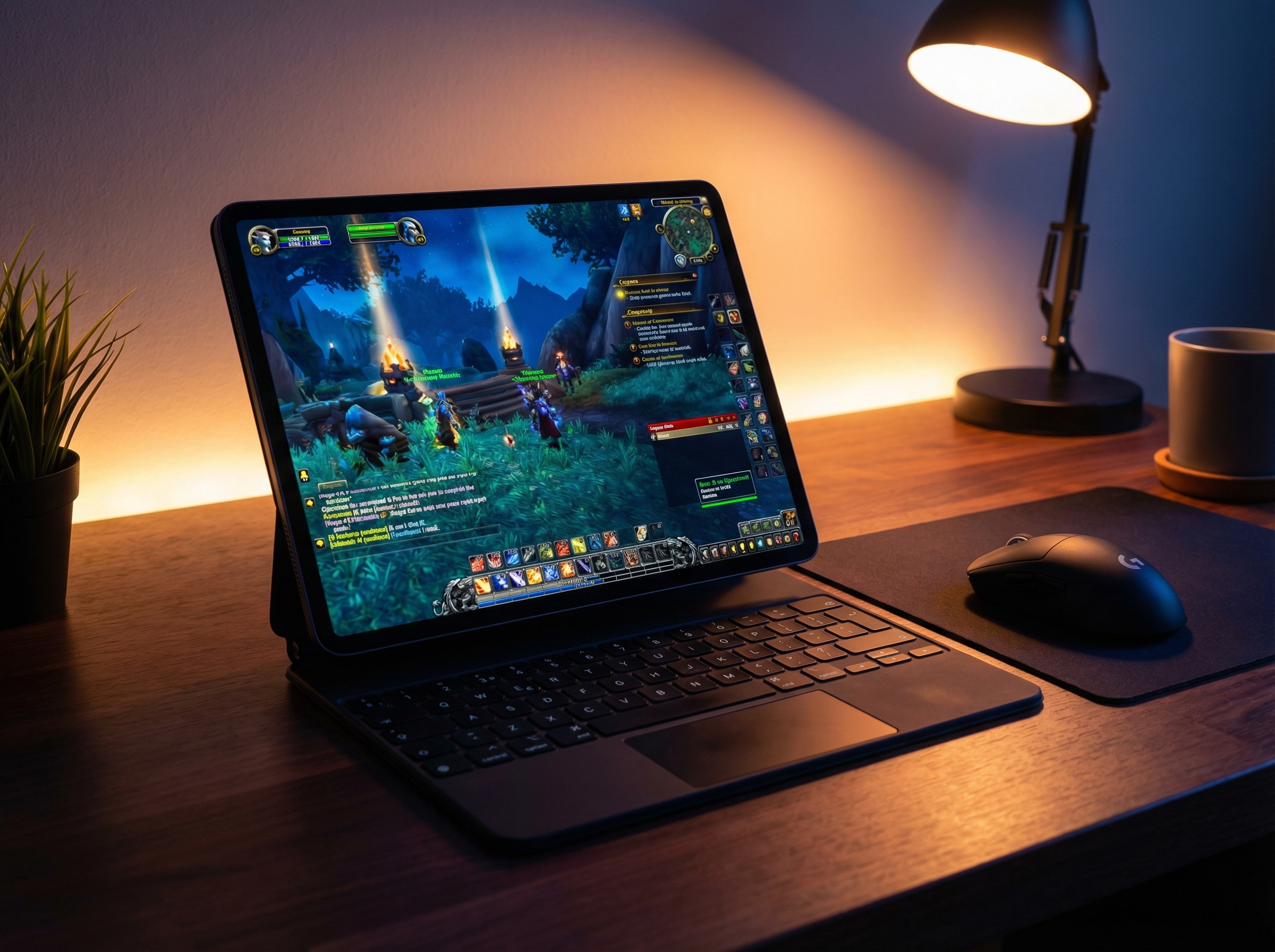
World of Warcraft is one of the most iconic MMORPGs ever created, with millions of players exploring Azeroth since 2004. Yet despite its legendary status, Blizzard has never released a native iOS version. For iPad users, this has meant being locked out of the world entirely—until cloud gaming came along.
Cloud gaming services like GeForce NOW and Boosteroid stream the full PC version of World of Warcraft directly to your device. In theory, this should let you play WoW on your iPad just like you would on a PC. But there was a catch.
The Roadblock: No Mouse Control in Safari
Cloud gaming services run in a web browser, and on iPad, that means Safari. The problem? Safari does not support mouse pointer lock—the feature that captures your mouse cursor within a game, allowing you to control the camera and interact with the game world.
World of Warcraft fundamentally requires mouse control:
- Camera movement: Hold right-click and move the mouse to rotate your view
- Targeting: Click on enemies, NPCs, and objects in the world
- UI interaction: Navigate menus, inventory, action bars, and more
Without mouse pointer lock, you simply cannot control the game. You can connect a mouse to your iPad, but Safari won’t let the game capture it. The cursor just sits there, useless.
This single limitation has blocked iPad users from playing World of Warcraft via cloud gaming—until now.
The Solution: CloudGear
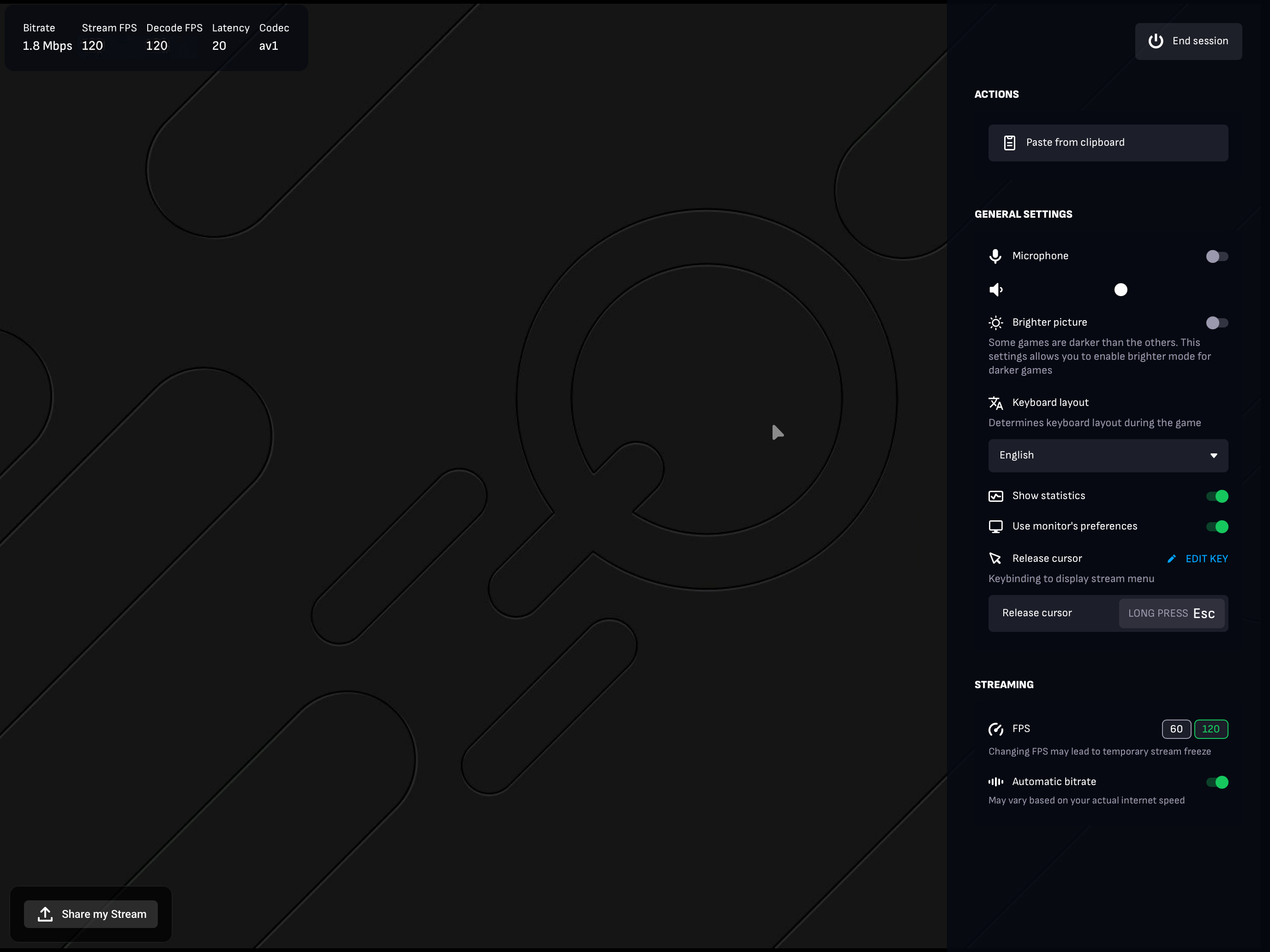
CloudGear is a browser built specifically for cloud gaming on iOS. Unlike Safari, it fully supports mouse pointer lock, which means your mouse works exactly as it should—camera control, targeting, everything.
With CloudGear, your iPad finally becomes a viable platform for playing World of Warcraft.
What CloudGear Offers:
- Full Mouse Support: Mouse pointer lock works properly, enabling full camera and UI control
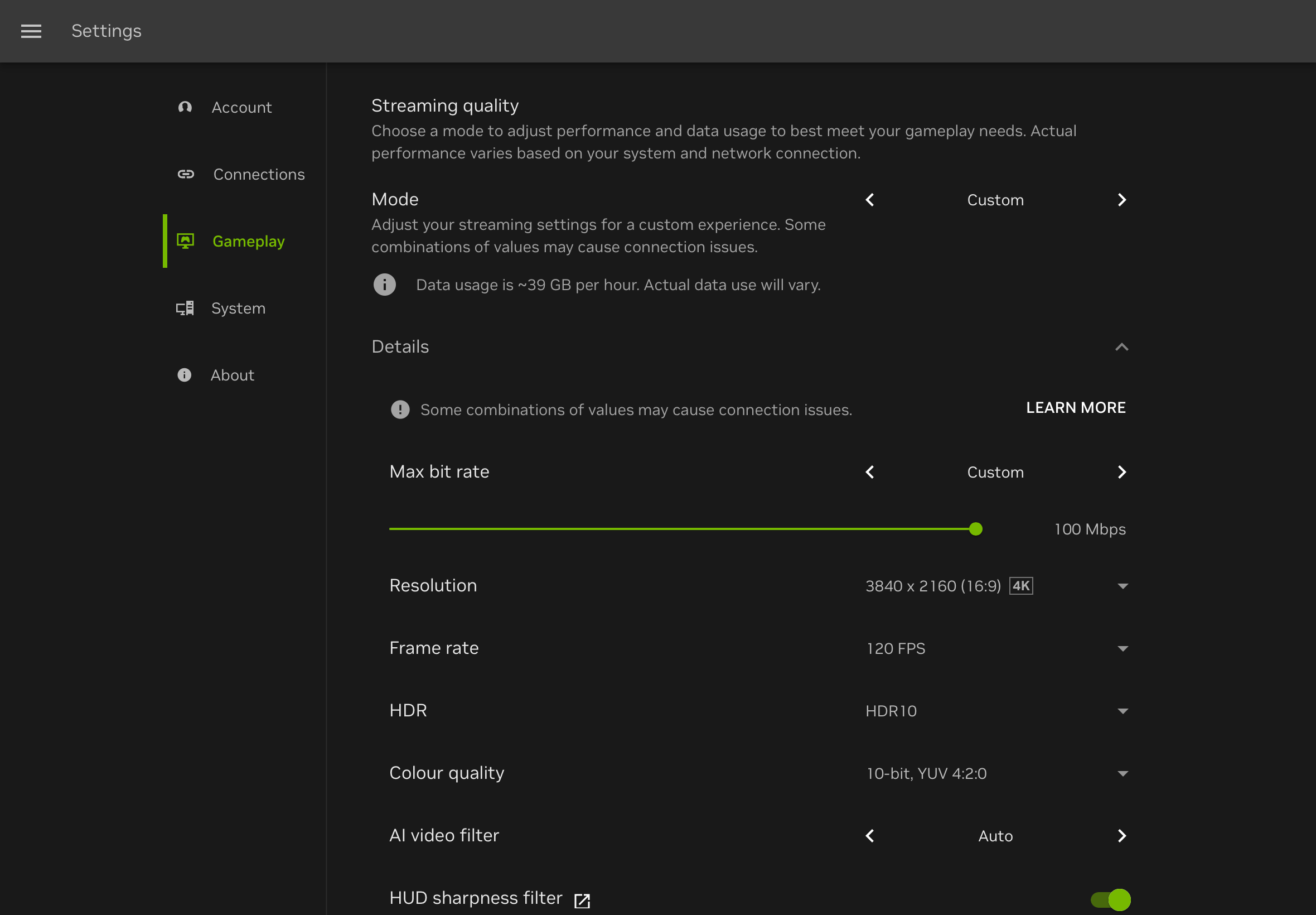
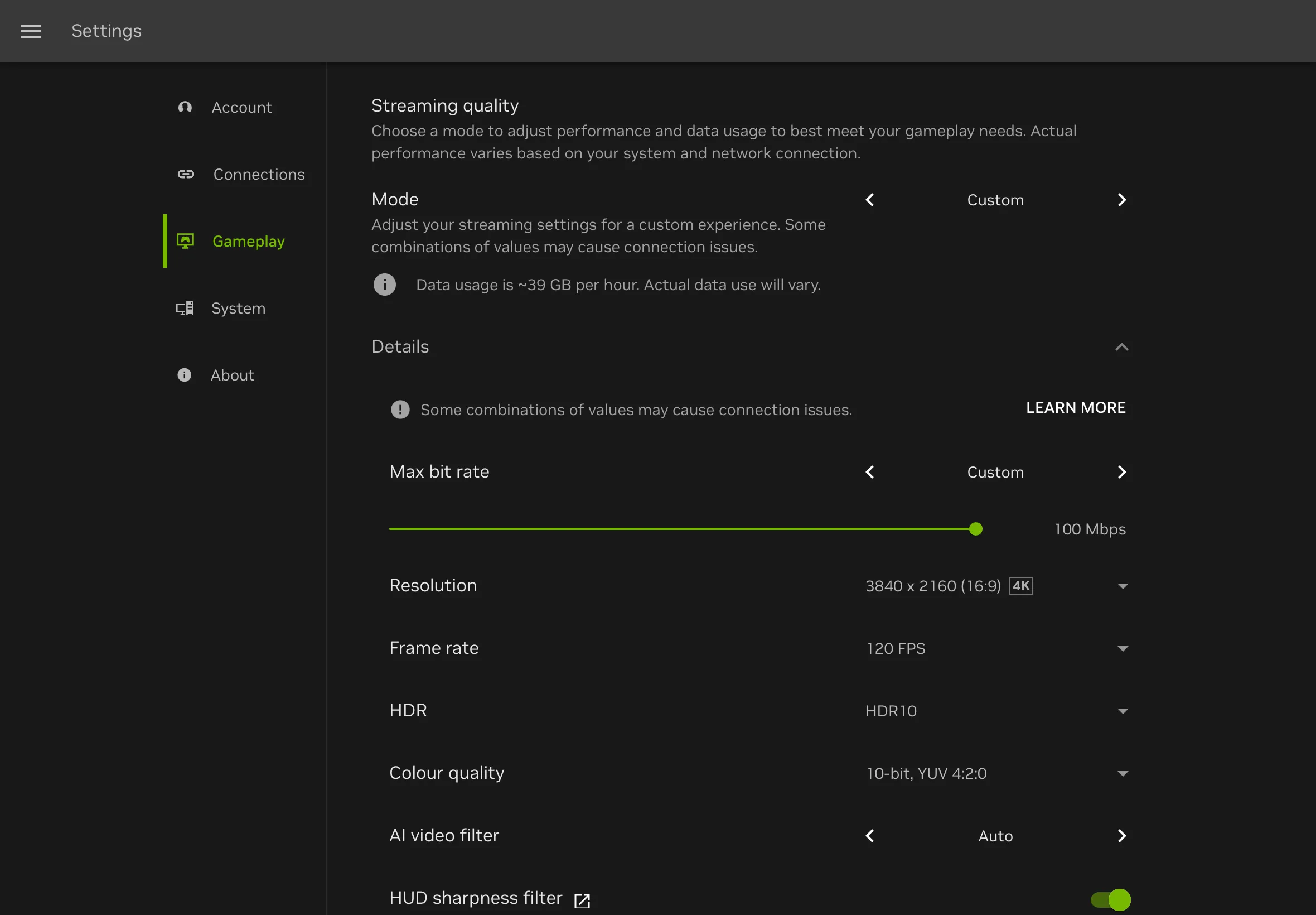
- High Resolution: Stream at up to 5120 x 2880 resolution for crystal-clear visuals
- 120 FPS: Smooth gameplay on supported iPads
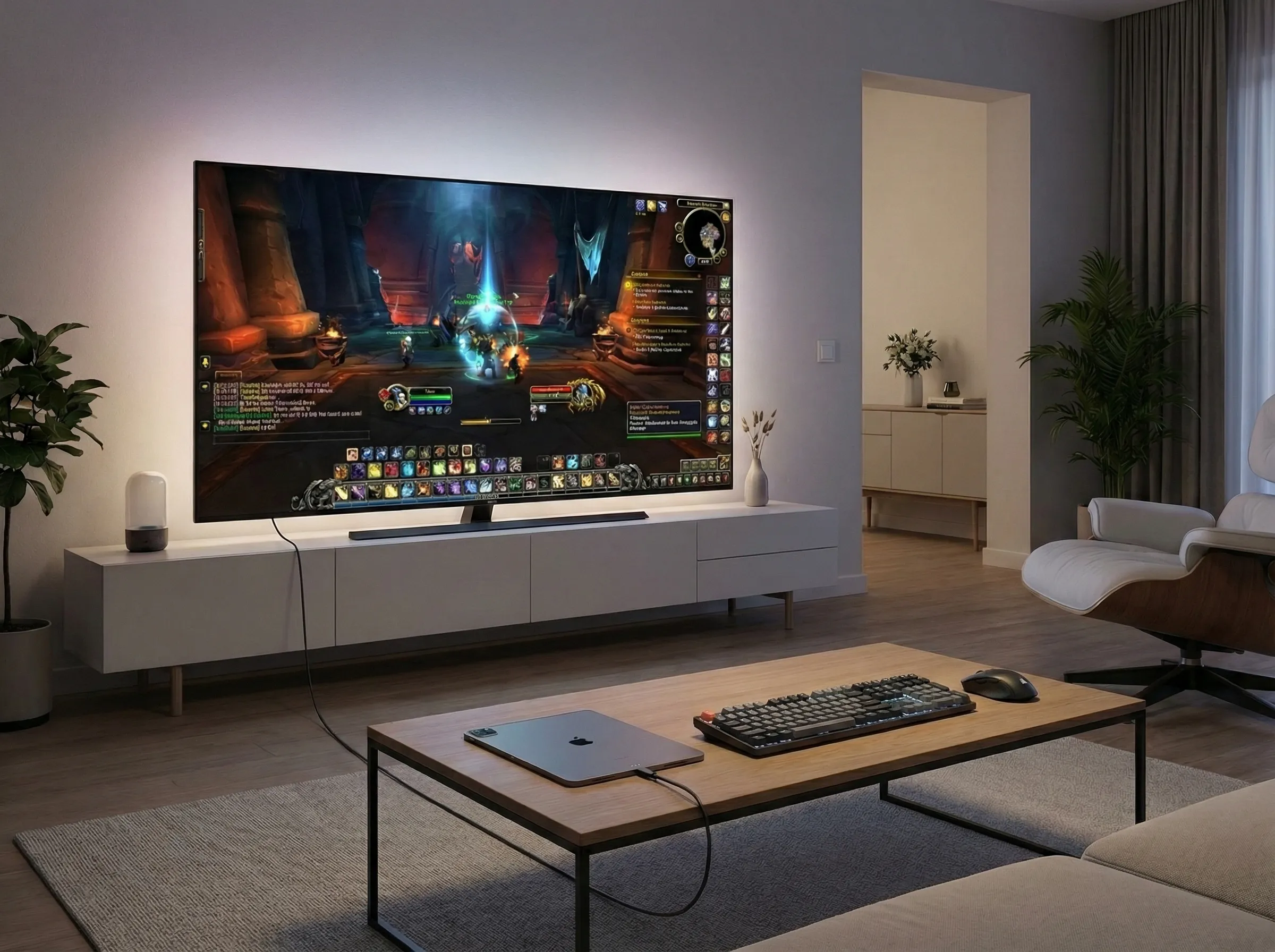
- External Display Support: Connect your iPad to a TV or monitor for a desktop-like experience
Step-by-Step Setup:
- Download CloudGear: Get the app from the App Store.
- Sign Up for a Cloud Gaming Service: Create an account at GeForce NOW or Boosteroid. Both support World of Warcraft.
- Connect Your Keyboard and Mouse: Pair via Bluetooth or connect using a USB hub/adapter.
- Open the Cloud Gaming Service: Launch CloudGear and navigate to your chosen service.
- Launch World of Warcraft: Search for the game, sign in to your Battle.net account, and start playing.
External Display: The Desktop Experience
Want to play World of Warcraft on a bigger screen? CloudGear supports external displays, so you can connect your iPad to a TV or monitor using a USB-C to HDMI adapter.
Once connected, CloudGear outputs a full-screen signal to your display. Pair this with a keyboard and mouse on your desk, and your iPad essentially becomes a portable WoW machine that you can plug in anywhere.
Conclusion
For years, iPad users have been locked out of World of Warcraft because Safari couldn’t handle the one thing the game needs most: mouse control. Cloud gaming services made streaming the game possible, but without proper mouse support, it was unplayable.
CloudGear changes that. With full mouse pointer lock support, your iPad can finally run World of Warcraft the way it was meant to be played.