· Guides
GeForce NOW on iOS Without Limits: 5K, 120 FPS, HDR, and More on iPhone & iPad
Safari caps GeForce NOW at low resolution, 60 FPS, and strips controller rumble, mouse lock, HDR, and surround sound. Here's how to unlock the full Ultimate experience on iOS.
GeForce NOW Ultimate promises up to 5K resolution, 120 FPS, HDR, and premium surround sound — the kind of experience you’d expect from a high-end gaming PC. But open it on your iPhone or iPad in Safari, and you get a fraction of that: low resolution, 60 FPS, no HDR, no rumble, no mouse lock, and stereo audio. You’re paying for a sports car and driving in first gear.
Here’s what Safari takes away, and how to get it all back.
What Safari Takes Away
Safari is a fine general-purpose browser, but it was never designed for cloud gaming. When you use GeForce NOW through Safari on iOS, you hit a wall of limitations that prevent the service from delivering what you’re paying for.
Visuals & Performance
- Resolution limited to 1600 x 1200 — GeForce NOW Ultimate supports up to 5120 x 2880 (5K), but in Safari you’re stuck at 1600 x 1200.
- Frame rate limited to 60 FPS — Ultimate members get 120 FPS (and above in certain cases), but in Safari the stream tops out at 60 — even on ProMotion displays.
- Bitrate limited to 75 Mbps — The Ultimate tier supports up to 100 Mbps for a cleaner image. In Safari, you max out at 75.
- No HDR — HDR is unavailable in Safari, so you see an SDR image even when the game and your display both support it.
- No 10-bit color — Without 10-bit support, color gradients show visible banding instead of smooth transitions.
- H.264 only — In Safari, GeForce NOW streams using H.264 only. The newer H.265 and AV1 codecs that deliver better image quality at lower bandwidth are unavailable.
- No frame pacing — Network jitter causes frames to arrive unevenly, creating visible stutter even on a fast connection. Safari has no mechanism to smooth this out.
Controls & Input
- No controller rumble — Safari lacks the Gamepad Haptics API. Your controller sits silent no matter what happens in-game.
- No mouse pointer lock — Games that need a mouse (FPS titles, MMOs, strategy games) are essentially unplayable because Safari can’t lock the cursor to the game window.
Audio
- Stereo only — GeForce NOW Ultimate streams 7.1 surround sound, but Safari delivers only stereo.
- No spatial audio — Head-tracked spatial audio for headphones is not available.
Experience
- No true fullscreen — Safari’s address bar, status bar, and other chrome intrude on the game view.
- No native external display output — Connecting to a TV or monitor through Safari results in mirroring with black bars and scaling issues, not a native full-screen signal.
That’s over a dozen features you’re missing — features you may already be paying for with an Ultimate membership.
CloudGear: The Full GFN Experience on iOS
CloudGear is a browser designed for gamers. It uses a custom low-latency rendering engine and deep hardware integration to deliver every feature that Safari leaves on the table. It’s not a streaming service — it’s the client that unlocks the full potential of GeForce NOW on your iPhone or iPad.
Safari vs. CloudGear: Feature Comparison
| Feature | Safari | CloudGear |
|---|---|---|
| Max Video Resolution | 1600 x 1200 | 5120 x 2880 |
| Max Frame Rate | 60 FPS | 120 FPS |
| Max Bitrate | 75 Mbps | 100 Mbps |
| HDR | No | Yes |
| 10-Bit Color | No | Yes |
| Video Codecs | H.264 | H.264, H.265, AV1 |
| Low Latency Rendering | No | Yes |
| Frame Pacing | No | Yes |
| Controller Vibration / Rumble | No | Yes |
| Mouse Pointer Lock | No | Yes |
| Custom Mouse Sensitivity | No | Yes |
| Custom Rumble Sensitivity | No | Yes |
| Device Haptics Fallback | No | Yes |
| 7.1 Surround Sound | No | Yes |
| Spatial Audio | No | Yes |
| Background Audio Playback | No | Yes |
| Immersive Fullscreen | No | Yes |
| Configurable Video Sizing | No | Yes |
| Native Resolution External Display | No | Yes |
Specific feature availability like resolution, FPS, and HDR depends on your subscription tier.
Deep Dive: What Changes with CloudGear
Resolution & Frame Rate
GeForce NOW Ultimate streams at up to 5120 x 2880 — sharper than 4K. On a 12.9” iPad Pro or connected to a 4K TV, the difference between Safari’s 1600 x 1200 and CloudGear’s full 5K output is immediately obvious. Text is crisp, distant objects are sharp, and the overall image quality matches what you’d see on a high-end gaming monitor.
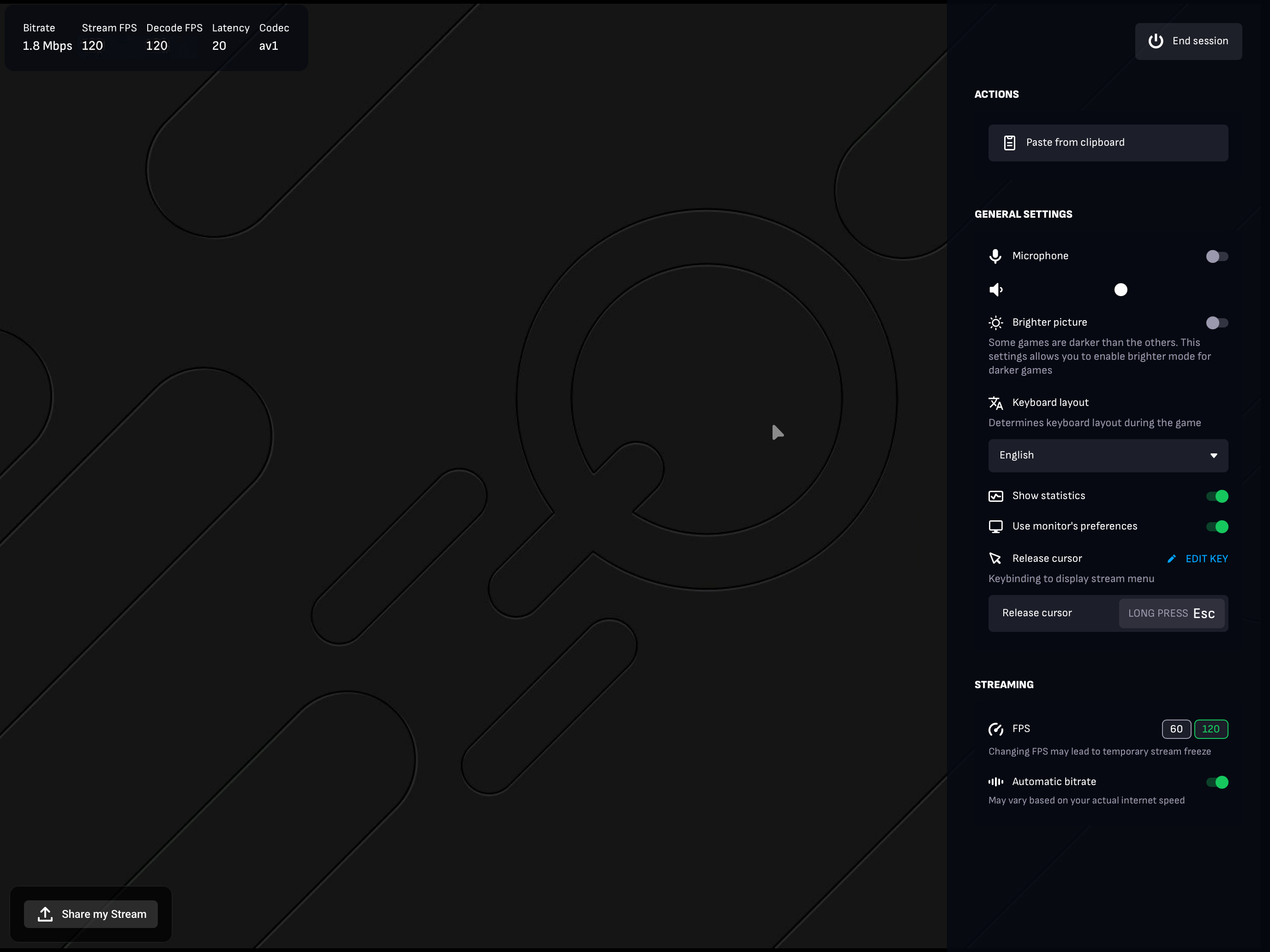
Frame rate matters just as much. On devices with ProMotion displays (120Hz), CloudGear unlocks up to 120 FPS. The jump from 60 to 120 FPS is transformative — camera movements are smoother, input feels more responsive, and fast-paced games like shooters and racing titles gain a tangible competitive edge.
Combined with the higher 100 Mbps bitrate ceiling, you get a cleaner, more detailed image with fewer compression artifacts.
CloudGear also includes frame pacing, which buffers one extra frame to absorb network jitter — the small fluctuations in frame delivery time that cause visible stutter even on a fast connection. This adds a tiny amount of latency (16.6 ms at 60 FPS, or 8.3 ms at 120 FPS) in exchange for noticeably smoother playback.
HDR & 10-Bit Color
HDR brings brighter highlights, deeper blacks, and a wider color gamut. In games that support it, sunlight looks more natural, explosions pop, and dark environments reveal detail that gets crushed in SDR. Safari discards the HDR metadata entirely, so you never see it.
CloudGear enables both HDR and 10-bit color output. Ten-bit color means 1.07 billion colors instead of the 16.7 million you get with 8-bit — practically, this eliminates the color banding you see in gradients like sunsets and fog effects.
H.265 & AV1 Codecs
Safari decodes GeForce NOW streams using H.264, a codec from 2003. It works, but it requires more bandwidth to achieve the same image quality as modern codecs.
CloudGear supports H.265 and AV1, both of which deliver noticeably better image quality at the same bitrate — or the same quality at lower bandwidth. This is especially valuable on mobile connections or congested WiFi networks. If you’ve ever noticed blocky artifacts or muddy textures during fast action, switching to H.265 or AV1 can make a significant difference.
Controller Rumble
A game without rumble is a game without feel. Explosions, engine vibrations, footsteps, weapon recoil — all of it disappears in Safari because the browser lacks the Gamepad Haptics API.
CloudGear restores full rumble support for Xbox, PlayStation, and other controllers with built-in motors. For form-fitting mobile controllers like the Backbone One that lack motors, CloudGear uses your iPhone’s Taptic Engine to simulate vibration.
For a deep dive into compatible controllers and how the Taptic Engine fallback works, see our controller rumble guide.
Mouse & Keyboard
Mouse pointer lock is what lets a game capture your cursor so you can look around, aim, and interact without the mouse escaping the game window. Safari doesn’t support it, which makes mouse-driven games essentially unplayable.
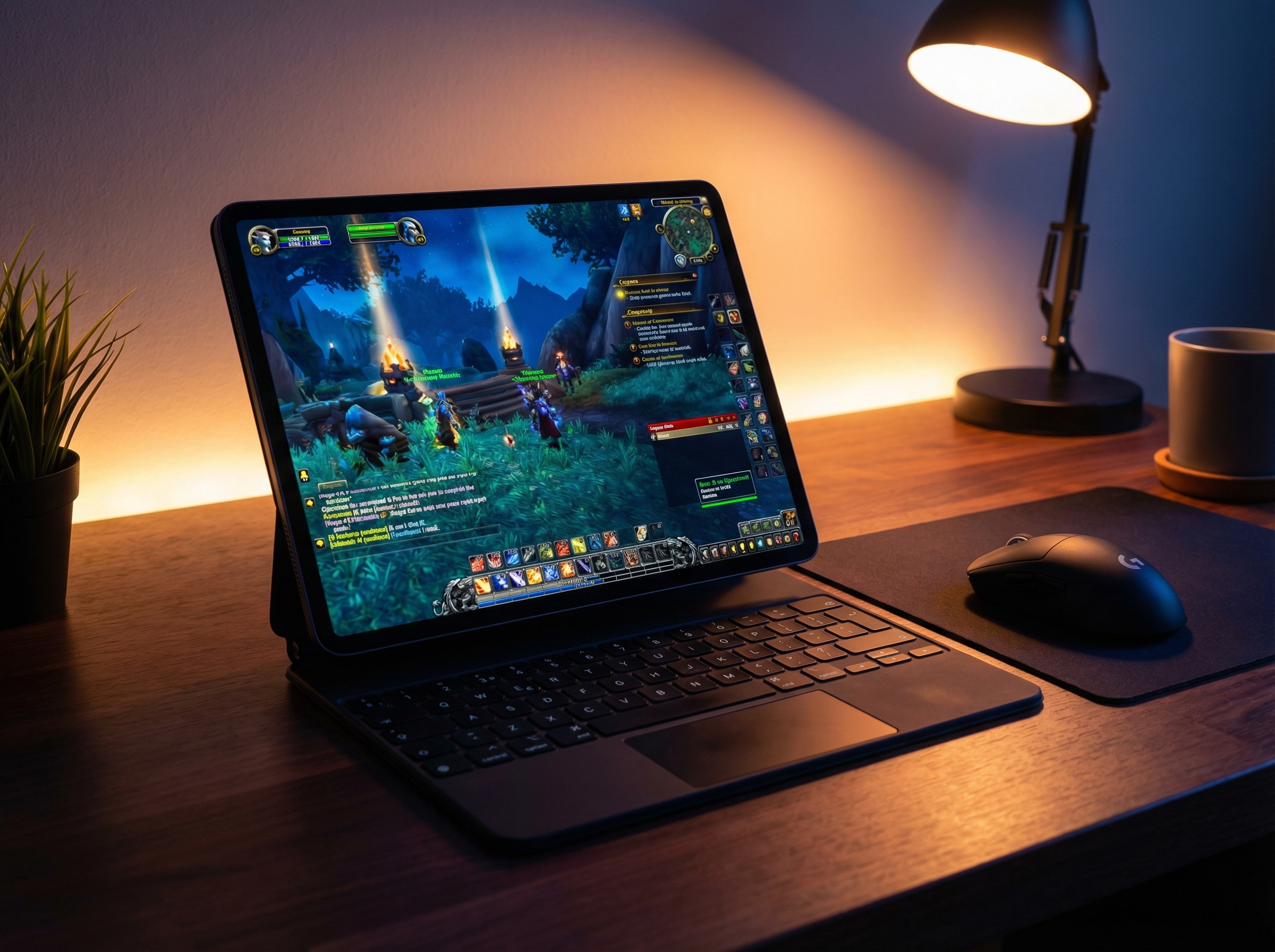
CloudGear enables full mouse pointer lock. This means games that require a mouse — MMOs like World of Warcraft, FPS titles like Counter-Strike, strategy games, and anything with a PC-native interface — are fully playable on iPhone and iPad.
For the complete setup walkthrough, see our dedicated mouse and keyboard cloud gaming guide.
Surround Sound & Spatial Audio
GeForce NOW Ultimate streams 7.1 channel surround sound, but Safari downmixes everything to stereo. CloudGear delivers the full surround mix. This really shines with spatial audio on AirPods or other headphones — the soundscape lets you hear individual sounds coming from all directions, giving you a genuine competitive edge in games where positional audio matters.
CloudGear also supports head-tracked spatial audio on AirPods and compatible headphones, so the sound field stays anchored to the game world as you move your head. On top of that, background audio mixing lets you listen to Discord, music, or podcasts while you play, with game audio and other apps blending seamlessly.
Fullscreen & External Display
Safari’s address bar and iOS status bar eat into your screen real estate. CloudGear provides a true immersive fullscreen mode — just the game, edge to edge. The browser interface is hidden and accessible via intuitive gestures when you need it.
Connect your iPhone or iPad to a TV, monitor, or AR glasses like XREAL, VITURE, Rokid, or RayNeo via USB-C or HDMI, and CloudGear outputs a native-resolution full-screen signal — no black bars, no scaling artifacts. Your iOS device becomes a full gaming console. The device screen dims automatically to save battery while the game plays on the big screen.
For the complete setup guide with adapter recommendations and tips, see our portable gaming console guide.
Setup Guide
Getting started takes less than five minutes:
Download CloudGear from the App Store on your iPhone or iPad.
Open the app and select GeForce NOW from the CloudGear home screen.
Log in to your NVIDIA account. Any GeForce NOW membership tier works, but Ultimate unlocks the highest quality settings (5K, 120 FPS, HDR, surround sound).
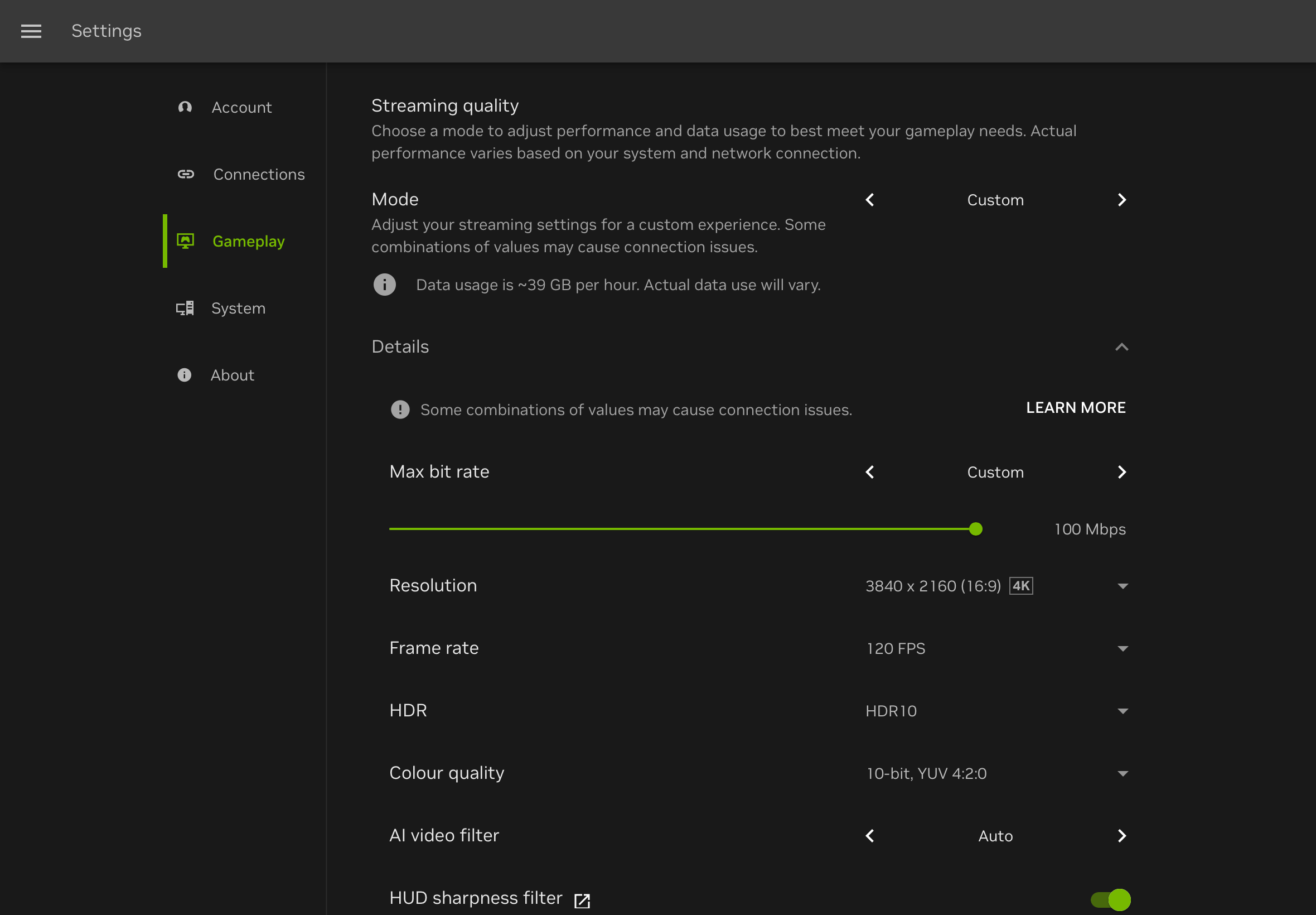
Configure streaming quality. Inside the GeForce NOW web app, go to Settings > Gameplay > Streaming Quality. Select Custom and choose your desired resolution and frame rate. For 4K, select 3840 x 2160. For 5K, select 5120 x 2880. Set frame rate to 120 FPS if your device supports ProMotion.
Enable HDR in GeForce NOW settings if your device supports it. CloudGear handles the HDR pipeline automatically.
Connect your peripherals. Pair a Bluetooth controller, mouse, or keyboard via iOS Settings > Bluetooth. CloudGear enables rumble and pointer lock automatically — no extra configuration needed.
Launch a game from your GeForce NOW library and play with the full Ultimate experience.
Optimization Tips
- Use 5GHz WiFi or Ethernet. 2.4GHz WiFi introduces latency and packet loss. For the lowest latency, use a USB-C hub with an Ethernet port for a wired connection.
- Match your stream resolution to your display. GeForce NOW streams at a fixed set of resolutions, so pick the one with the closest aspect ratio to your device. On iPhone, select a 21:9 resolution such as 3440 x 1440. On iPad, select 3456 x 2160 (3.5K), which is 16:10. Small black bars may appear due to the slight aspect ratio difference; use CloudGear’s video sizing modes to minimize them. On a 4K TV, select 3840 x 2160.
- Pick the right controller. Xbox Series X/S and PS5 DualSense controllers both support native rumble. For iPhone with a form-fitting controller, CloudGear’s Taptic Engine fallback provides haptic feedback.
- Select the nearest GFN server. Lower physical distance to the server means lower latency. Check your server selection in GeForce NOW settings if you’re experiencing input lag.
- Use passthrough charging. Long sessions drain your battery. A USB-C hub with passthrough charging keeps your device powered while connected to an external display.
Unlock the Full GeForce NOW Experience
Safari is holding GeForce NOW back on iOS. Every premium feature you’re paying for — 5K resolution, 120 FPS, HDR, surround sound, controller rumble, mouse and keyboard support — gets stripped or capped before it reaches your screen.
CloudGear gives it all back. One app, every feature, on any screen.