· Guides
How to Use Mouse & Keyboard for Cloud Gaming on iPhone & iPad (2026 Guide)
Safari blocks mouse pointer lock, making mouse-driven cloud games unplayable on iOS. Here's how to get full mouse and keyboard support for GeForce NOW, Xbox Cloud Gaming, and Boosteroid on iPhone and iPad.
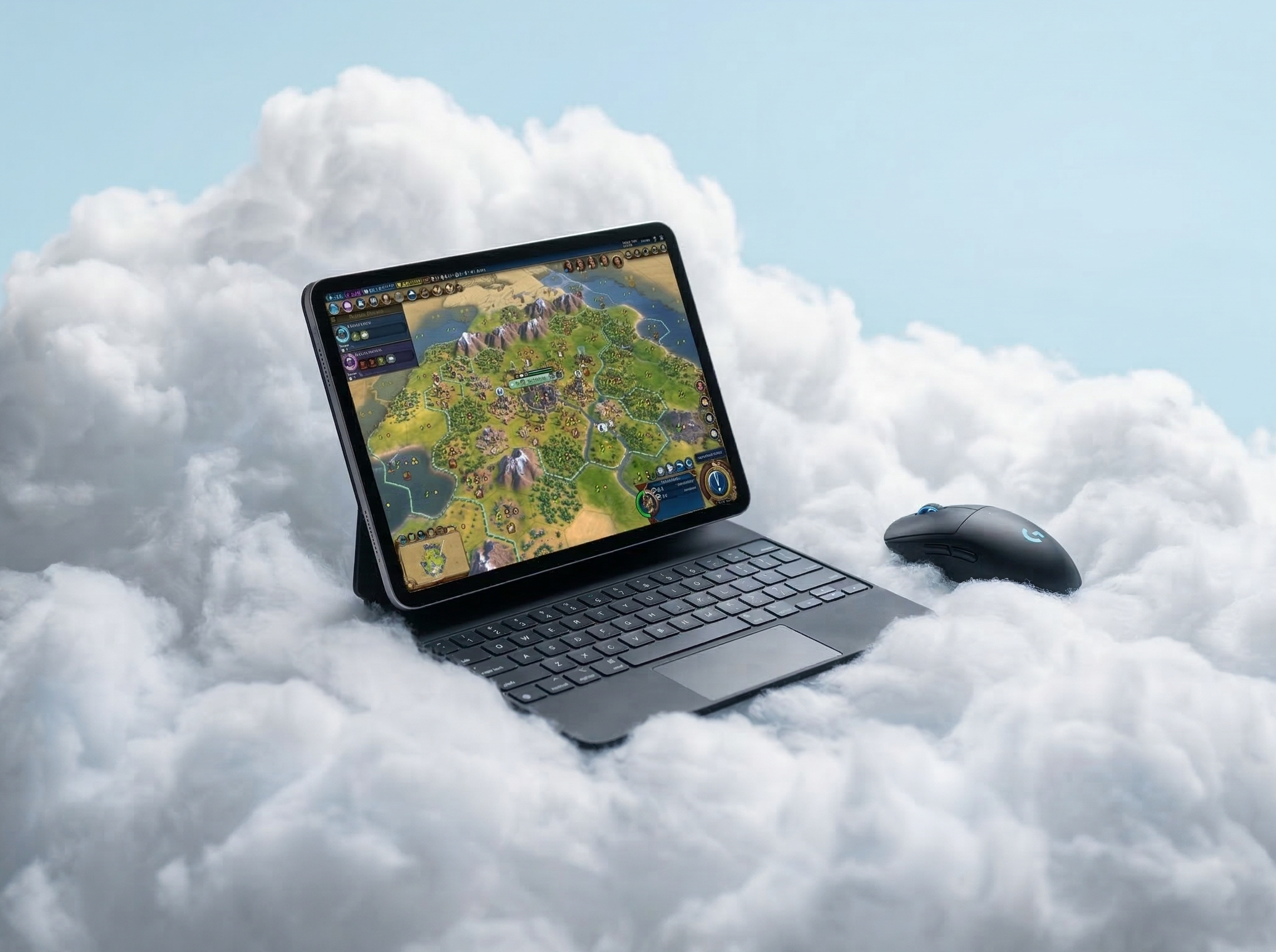
Many of the best PC games were designed for mouse and keyboard. First-person shooters demand the precision of a mouse for aiming. MMOs rely on keyboard shortcuts and mouse-driven UI interaction. Strategy games need a cursor for unit selection and map navigation. These genres were built around mouse and keyboard input, and they don’t translate well to a controller — if they translate at all.
Cloud gaming services like GeForce NOW, Boosteroid, and Xbox Cloud Gaming stream these full PC and console games directly to your iPhone or iPad. You can connect a Bluetooth keyboard and mouse, open Safari, and start a game. But the moment you try to aim, move the camera, or interact with a PC game interface, you’ll discover the problem: your mouse doesn’t work the way it should.
Why Safari Can’t Do It
The issue comes down to a missing browser API: Pointer Lock.
Mouse pointer lock is the browser feature that captures your cursor inside a game window. When a game activates pointer lock, your mouse movements translate directly into camera rotation, aiming, or cursor movement within the game — the cursor can’t escape the window. Every PC gamer takes this for granted. It’s what makes mouse-driven games work.
Safari on iOS does not implement the Pointer Lock API. When you connect a mouse and open a cloud gaming session, the cursor floats freely over the browser page. It doesn’t get captured by the game. You can’t aim, you can’t rotate the camera. For any game that depends on mouse control, this makes the experience unplayable.
The result: even though you can physically connect a mouse and keyboard to your iPad, Safari prevents them from working properly in cloud gaming sessions. You’re stuck with a controller for games that were never designed for one.
The Solution: CloudGear
CloudGear is a browser built specifically for cloud gaming on iOS. Unlike Safari, it fully supports mouse pointer lock, giving you proper PC-style input on your iPhone or iPad.
When a cloud game requests pointer lock, CloudGear captures the cursor immediately. Your mouse controls the camera, the aiming reticle, or whatever the game expects — exactly like it would on a desktop PC. Keyboard input goes straight to the game without iOS intercepting your keystrokes.
Beyond pointer lock, CloudGear gives you fine control over the input experience:
- Custom Mouse Sensitivity — adjust sensitivity to match your preference, independent of the in-game setting
- Scroll Direction Inversion — match your natural scroll direction for inventory management and map zooming
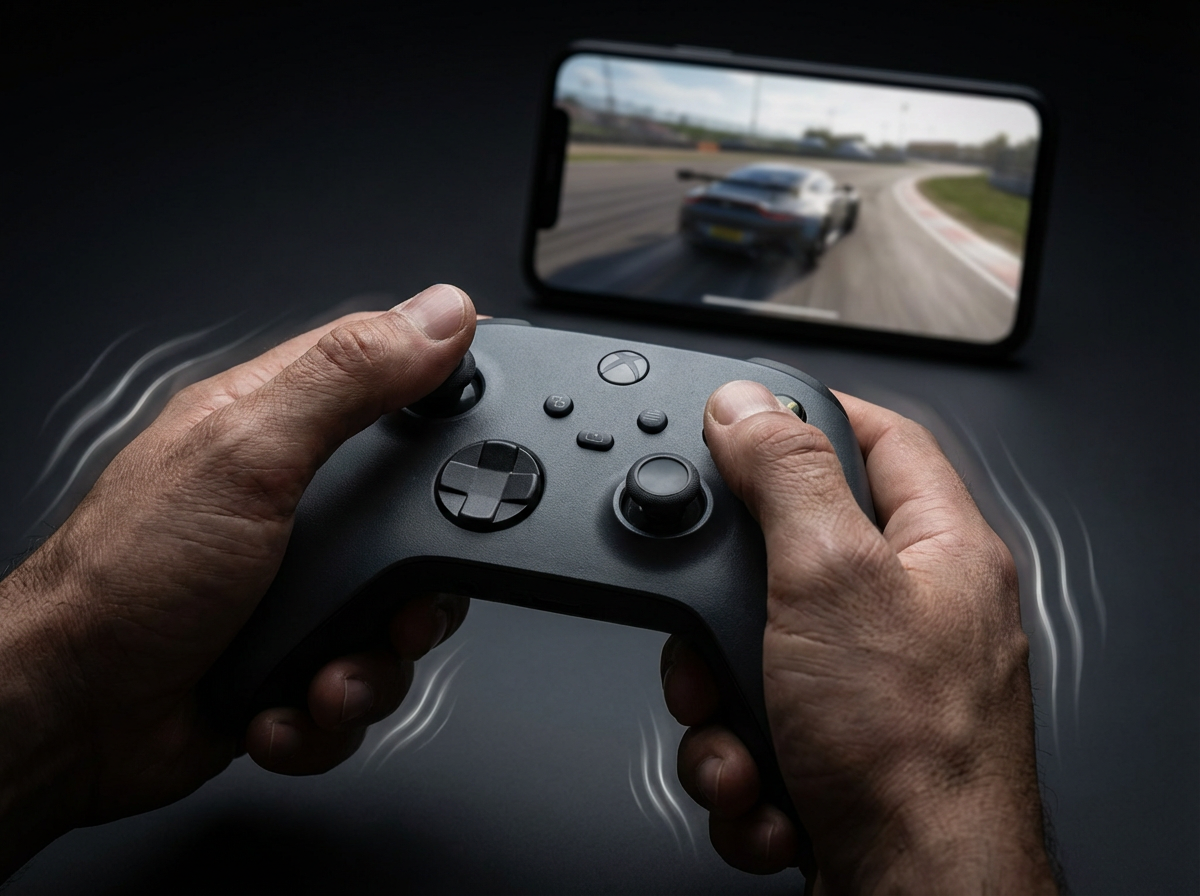
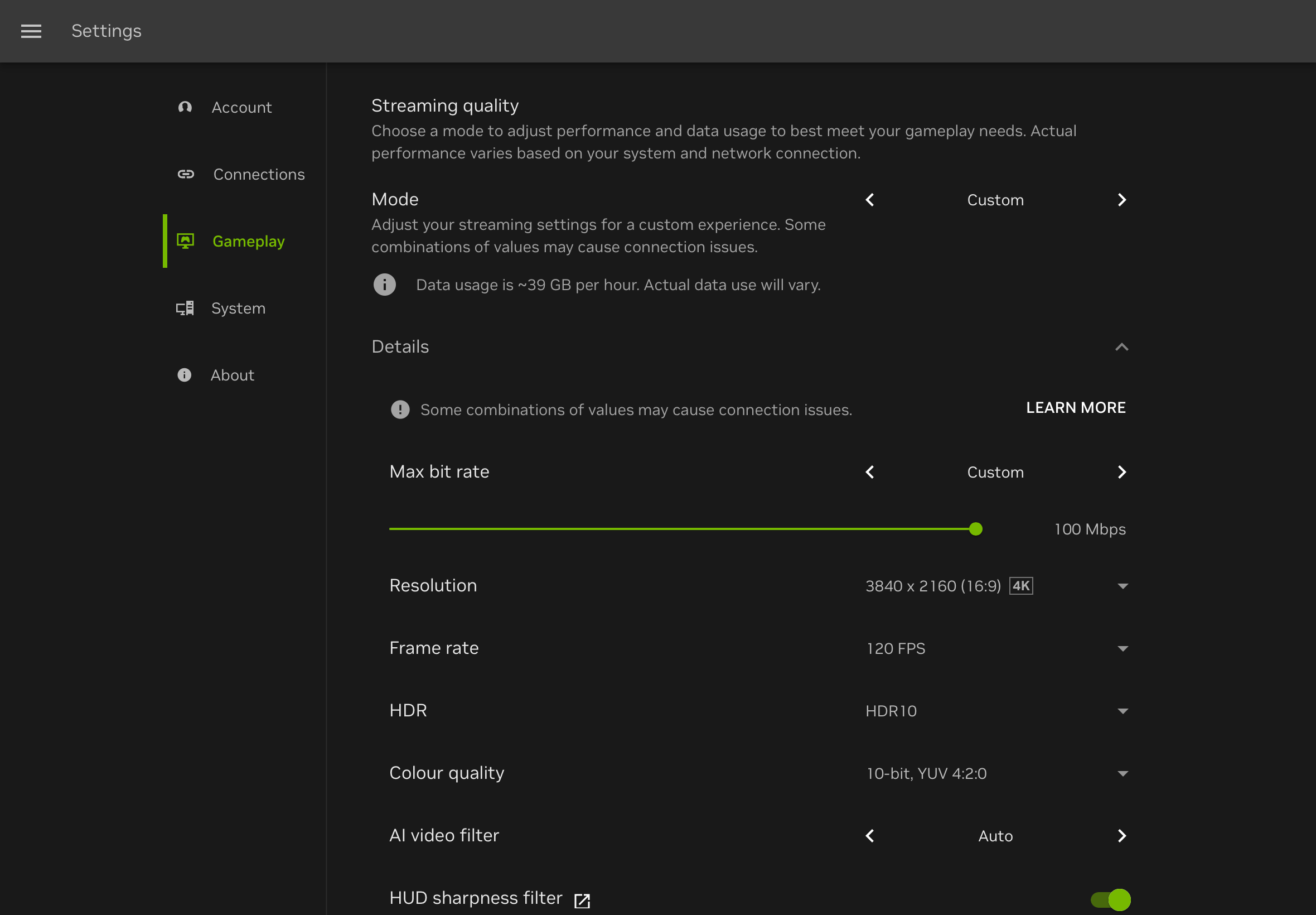
CloudGear also delivers the full cloud gaming experience that Safari can’t: up to 5K resolution, 120 FPS, HDR, controller rumble, 7.1 surround sound, and native external display output. For a complete breakdown, see our GeForce NOW feature guide.
Step-by-Step Setup
Getting mouse and keyboard working takes just a few minutes:
Download CloudGear from the App Store on your iPhone or iPad.
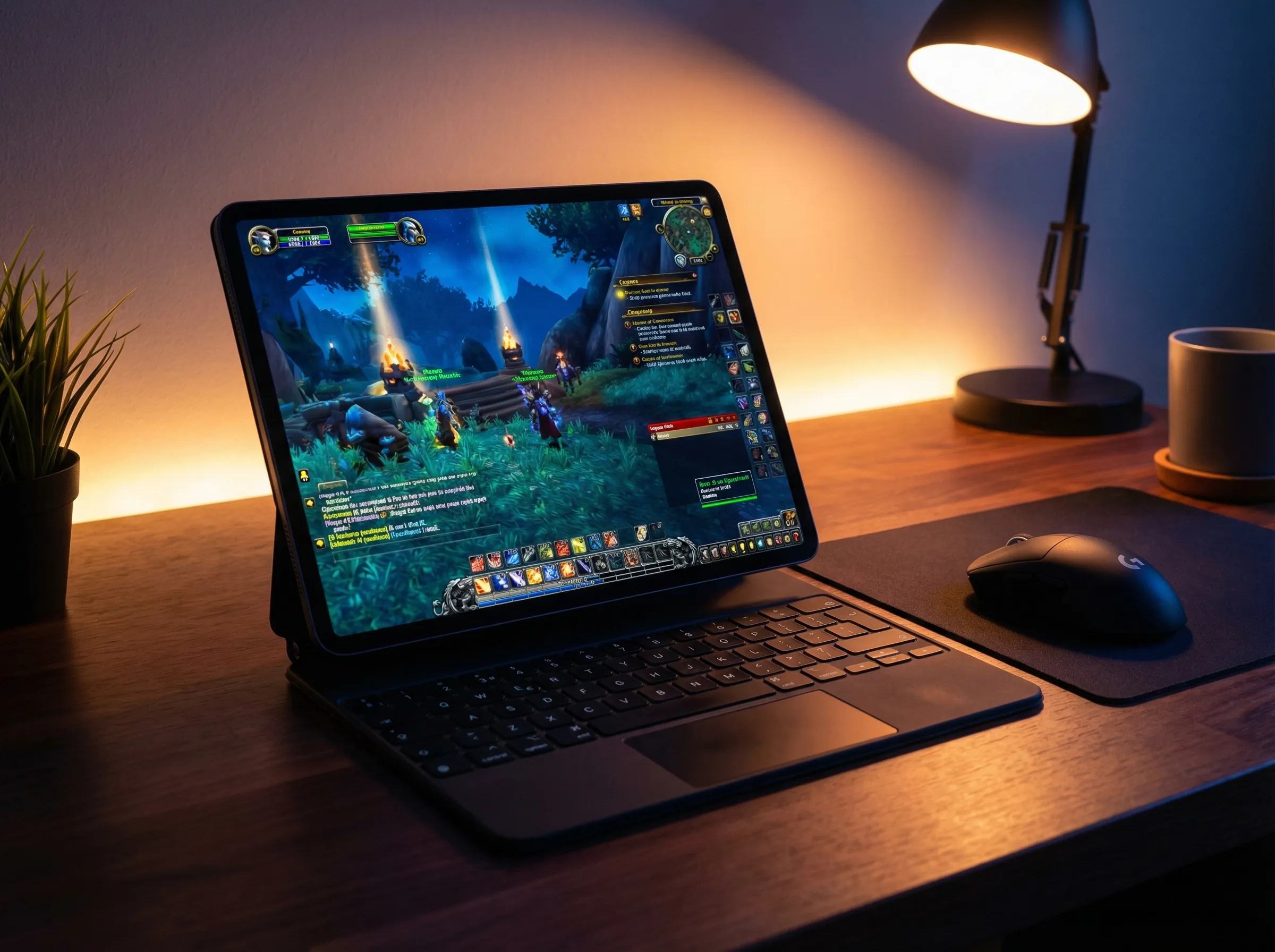
Connect your keyboard and mouse. Pair via Bluetooth through iOS Settings > Bluetooth. Alternatively, connect wired peripherals using a USB-C hub or adapter — a hub with passthrough charging is ideal so you can stay powered during long sessions. Trackpads are fully supported too, including the built-in trackpad on Apple’s Magic Keyboard for iPad.
Open CloudGear and navigate to your cloud gaming service — GeForce NOW, Boosteroid, or Xbox Cloud Gaming.
Launch a game. Pointer lock activates automatically when the game requests it. No manual toggle, no extra settings. Your mouse and keyboard just work.
Adjust sensitivity if needed. Open CloudGear’s settings to fine-tune mouse sensitivity and scroll direction to your liking.
Which Cloud Gaming Services Support Mouse & Keyboard?
All three major cloud gaming services accept mouse and keyboard input through CloudGear, but the level of support varies:
GeForce NOW — The best option for mouse and keyboard gaming. GeForce NOW streams the full PC version of every game in its library, so any title with native mouse and keyboard support works exactly as it would on a desktop. That includes the entire catalog of FPS, MMO, RTS, and strategy titles. Up to 5K resolution and 120 FPS on an Ultimate membership.
Boosteroid — Also streams PC versions with full mouse and keyboard support. Supports up to 4K resolution, 120 FPS, and HDR. A strong library of mouse-and-keyboard-friendly titles across multiple genres.
Xbox Cloud Gaming — Streams console (Xbox) versions of games, so mouse and keyboard support depends on whether the individual game implements it on Xbox. Some titles like Minecraft and Fortnite support mouse and keyboard on console; many others are controller-only. Best used with a controller, but mouse and keyboard works where the game allows it.
Games That Shine with Mouse & Keyboard
Cloud gaming with mouse and keyboard on iOS opens up genres that were previously impossible to play on an iPhone or iPad:
- FPS — Counter-Strike 2, Valorant, Overwatch 2. Precision aiming that a controller thumbstick simply cannot match. The difference between a mouse and a joystick in competitive shooters is night and day.
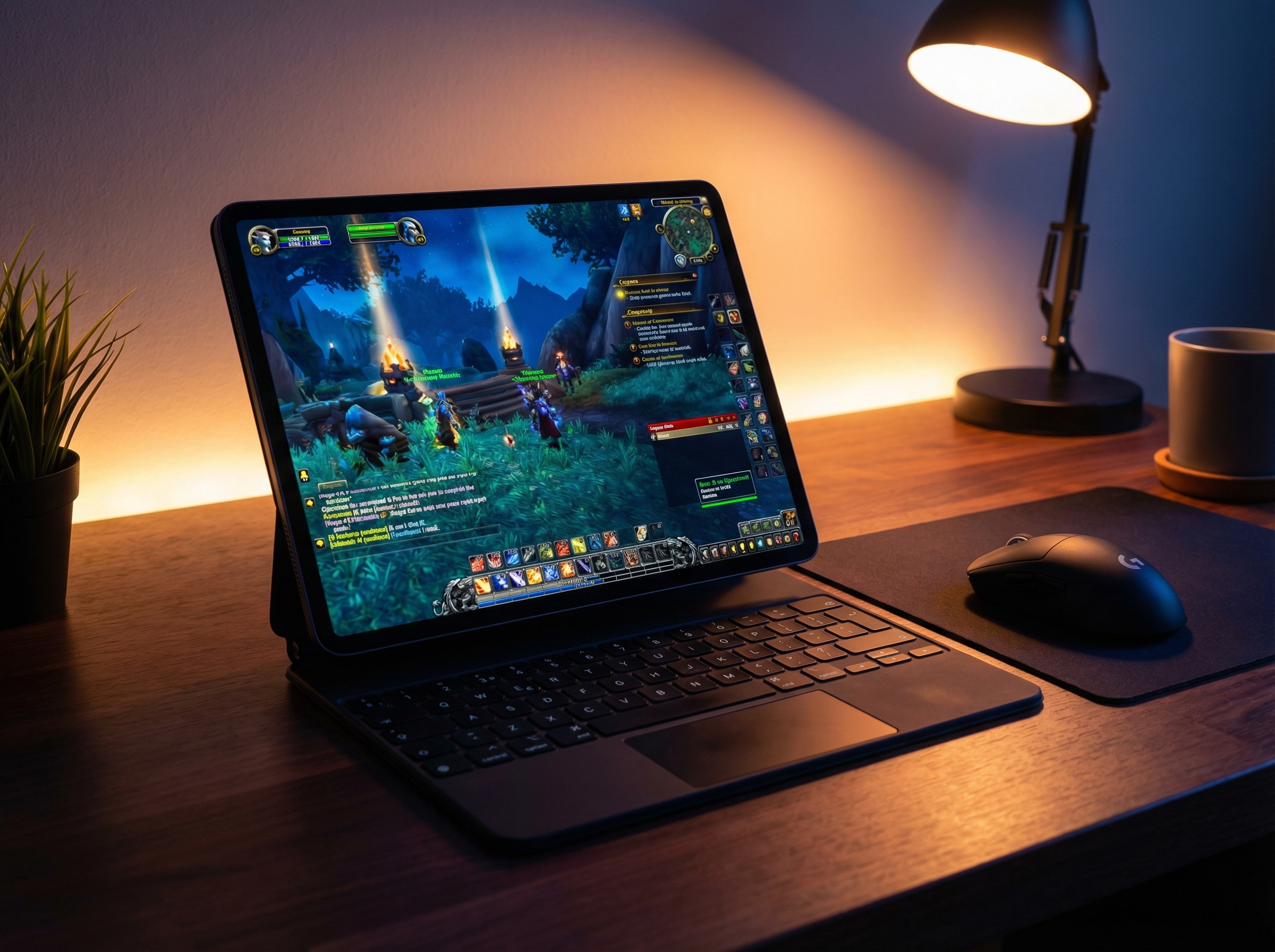
- MMOs — World of Warcraft, Final Fantasy XIV, Guild Wars 2. Complex UIs with dozens of action bar slots, inventory management, and camera control that fundamentally require a mouse. See our WoW on iPad guide for a practical example.
- Strategy & RTS — Civilization VI, Age of Empires IV, Total War. Unit selection, map navigation, and building placement all depend on precise cursor control.
- Survival & Sandbox — Rust, Minecraft, Valheim. Building, crafting, and inventory management are far more efficient with a mouse and keyboard than a controller.
These are games you couldn’t meaningfully play on iOS before — not because the hardware isn’t powerful enough, but because Safari blocked the one input feature they all require.
Tips for the Best Experience
- Use 5 GHz WiFi or Ethernet. Cloud gaming is latency-sensitive. A 5 GHz WiFi connection minimizes lag. For the absolute lowest latency, use a USB-C hub with an Ethernet port for a wired connection.
- Any Bluetooth or USB mouse works — and trackpads too. You don’t need a gaming-specific mouse. Trackpads are fully supported, so if you use an Apple Magic Keyboard with built-in trackpad, that works out of the box. A gaming mouse with adjustable DPI gives you the finest control over sensitivity. Pair it with CloudGear’s built-in sensitivity adjustment for the perfect feel.
- Mechanical keyboards provide better feedback. Any keyboard works, but a mechanical keyboard gives tactile confirmation of keystrokes — useful in fast-paced games where you need to know a key press registered.
- Adjust mouse sensitivity in CloudGear. The app-level sensitivity setting stacks with the in-game setting, giving you a wider range of adjustment than either alone.
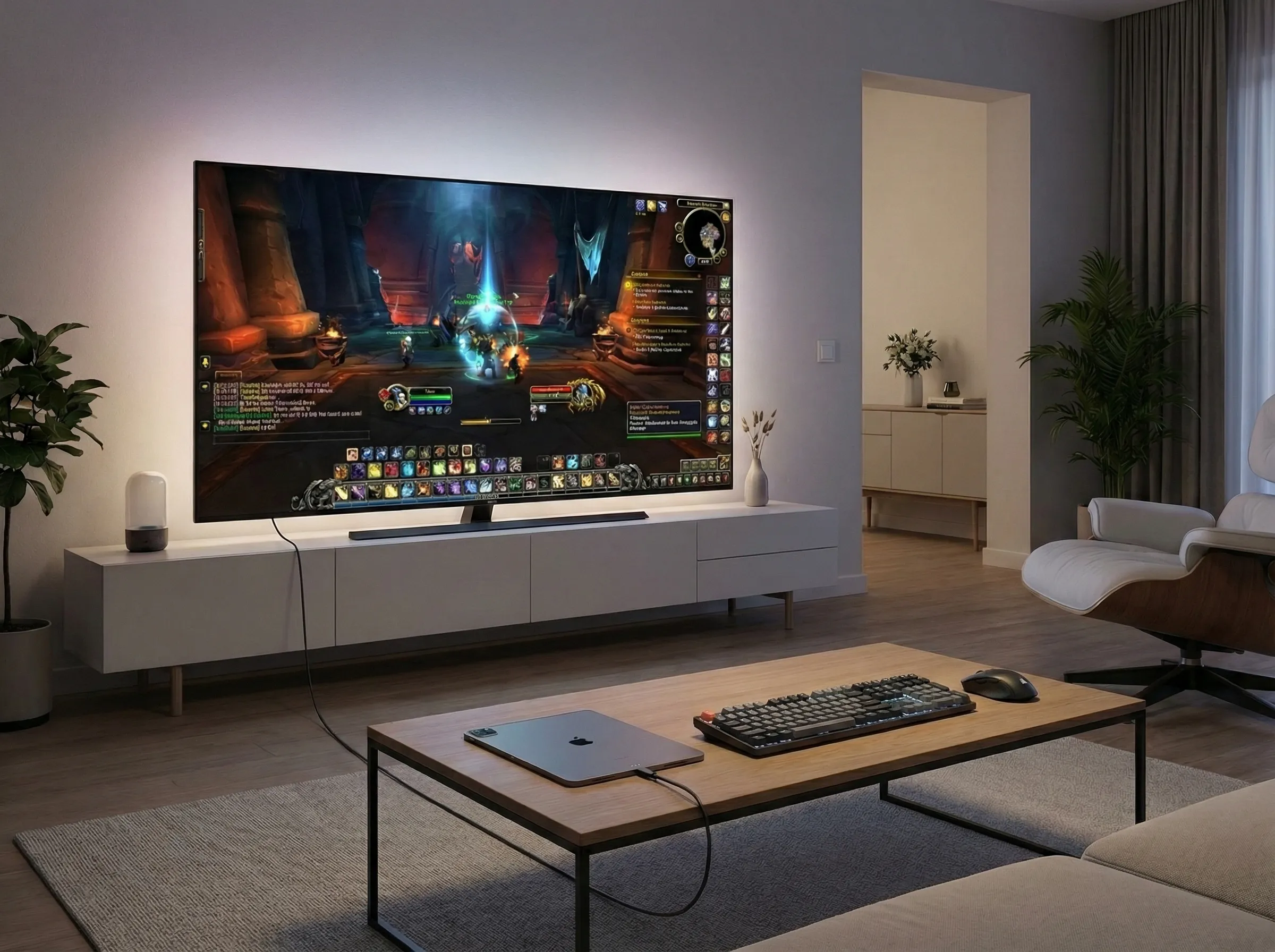
- Connect to an external display. Plug your iPad into a monitor or TV via USB-C to HDMI, pair a keyboard and mouse, and you have a full desktop cloud gaming setup. CloudGear outputs a native-resolution full-screen signal with no black bars. See our portable gaming console guide for the complete setup.
Your iPad Is a PC Gaming Station
Safari’s missing pointer lock has kept an entire category of games out of reach on iOS. You could connect a mouse and keyboard to your iPad, but the browser wouldn’t let them do their job. FPS, MMO, RTS, survival — all locked behind a missing API.
CloudGear removes that barrier. Pointer lock, adjustable sensitivity — everything you need for proper mouse and keyboard gaming, built into a browser designed for cloud gaming on iOS. Connect your peripherals, open a game, and play the way these games were meant to be played.