How to Set Up CloudGear on Apple TV
Pair your Apple TV with your iPhone or iPad, then play your cloud games on the big screen. Setup takes about a minute, plus the two settings that catch most people out.
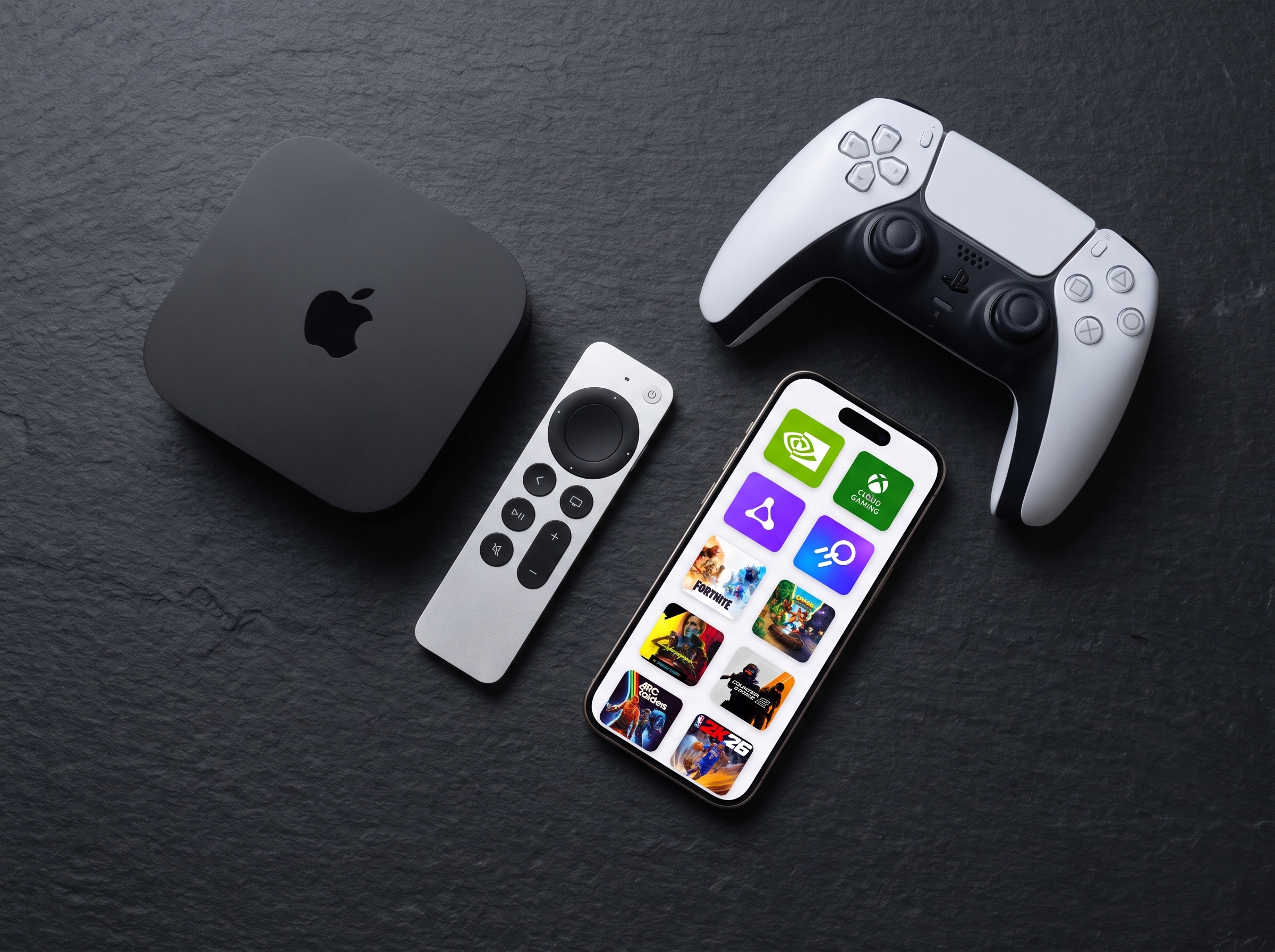
CloudGear for Apple TV is a companion app. Your iPhone or iPad does the browsing, signing in, and launching; your Apple TV plays the game. It is not a standalone app, so it needs a paired iOS device to do anything.
It is included with your CloudGear unlock. One subscription or lifetime purchase covers your iPhone, iPad, and Apple TV, so there is nothing extra to buy.
Before you start
- CloudGear installed on an iPhone or iPad, signed in to at least one cloud gaming service.
- An Apple TV running tvOS 18.6 or later. An Apple TV 4K is required for 4K and HDR output.
- Both devices on the same local network. This is the single most common reason an Apple TV doesn’t show up during pairing. Apple TV can connect by Wi-Fi or Ethernet.
Step 1: Install CloudGear on your Apple TV
Open the App Store on your Apple TV and search for CloudGear. Because CloudGear is a Universal Purchase, if you already own it on iPhone or iPad it is already yours here.
Step 2: Pair the two devices
- On Apple TV, open CloudGear and select Pair device, or Settings → Pair new device.
- On your iPhone or iPad, open CloudGear and go to Settings → Apple TV.
- Find your Apple TV in the device list and select Pair.
- Enter the six-digit code shown on the TV.
The two devices stay paired, so this is a one-time step.
Step 3: Connect and hand off
Two settings on your iPhone or iPad, under Settings › Apple TV, make this automatic:
- Auto-connect to Apple TV connects to a paired Apple TV whenever it is found.
- Automatically hand off to Apple TV hands a game off to a connected Apple TV as soon as it starts.
With both on, you just start a game on your iPhone as usual and it appears on the TV.
The two ways to play
Handed off (default). Apple TV takes over the streaming session, so your iPhone or iPad is no longer needed to keep it running. Play with a game controller, the Siri Remote’s touchpad, or a Steam Controller.
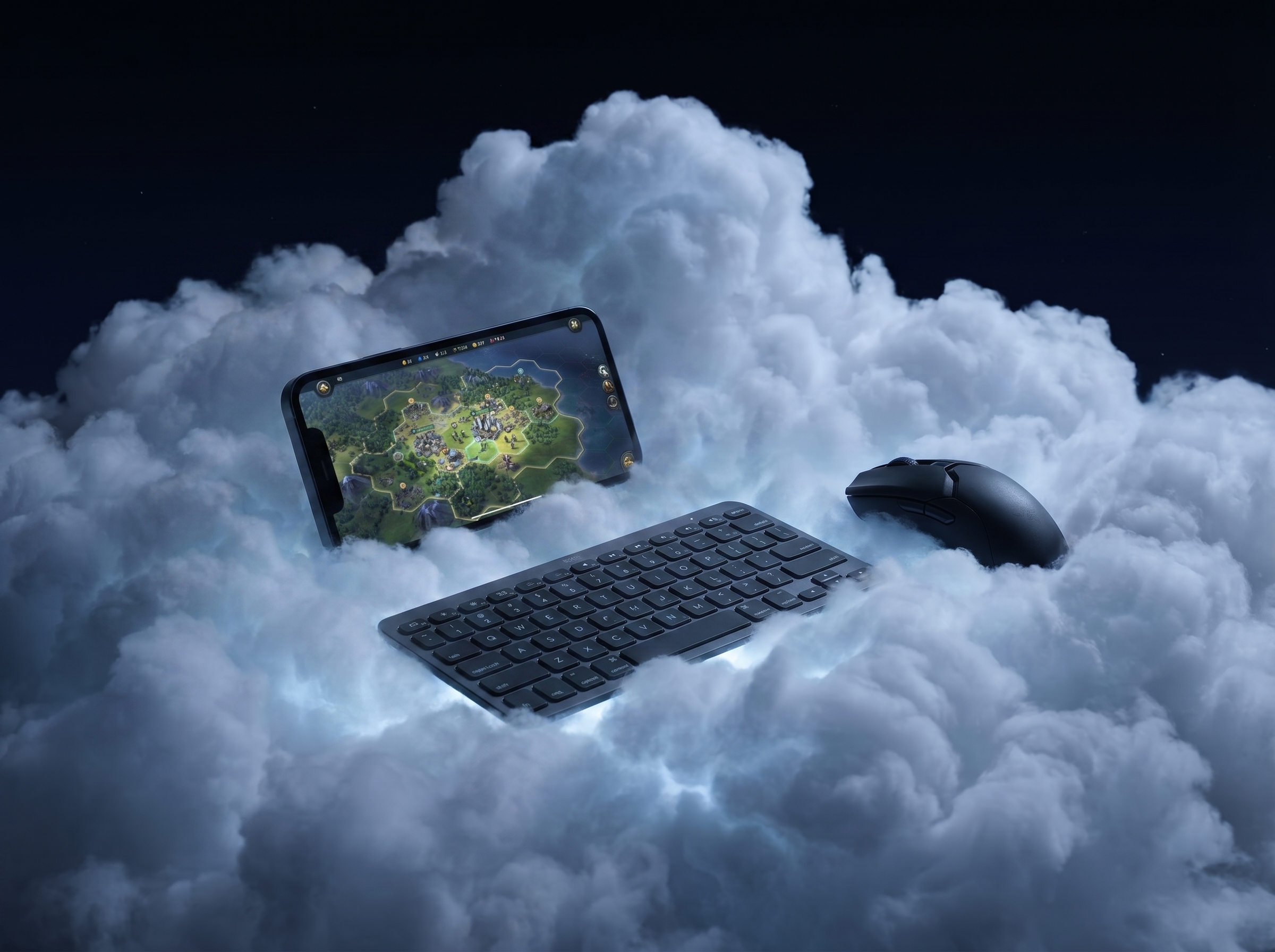
Tethered. Your iPhone or iPad stays connected and relays input to the Apple TV. This is the mode to use for a keyboard and mouse: connect them to your iOS device and their input passes straight through to the game on the TV, which suits strategy games and MMORPGs. To play tethered, turn off Automatically hand off to Apple TV on your iPhone or iPad (Settings › Apple TV). Keep the iOS device nearby and unlocked while you play.
While a game is tethered, a companion bar on your iOS device lets you Hand off or Disconnect at any time. You can also disconnect from the in-game menu on the Apple TV.
Two settings that catch most people out
HDR depends on your Apple TV’s output format
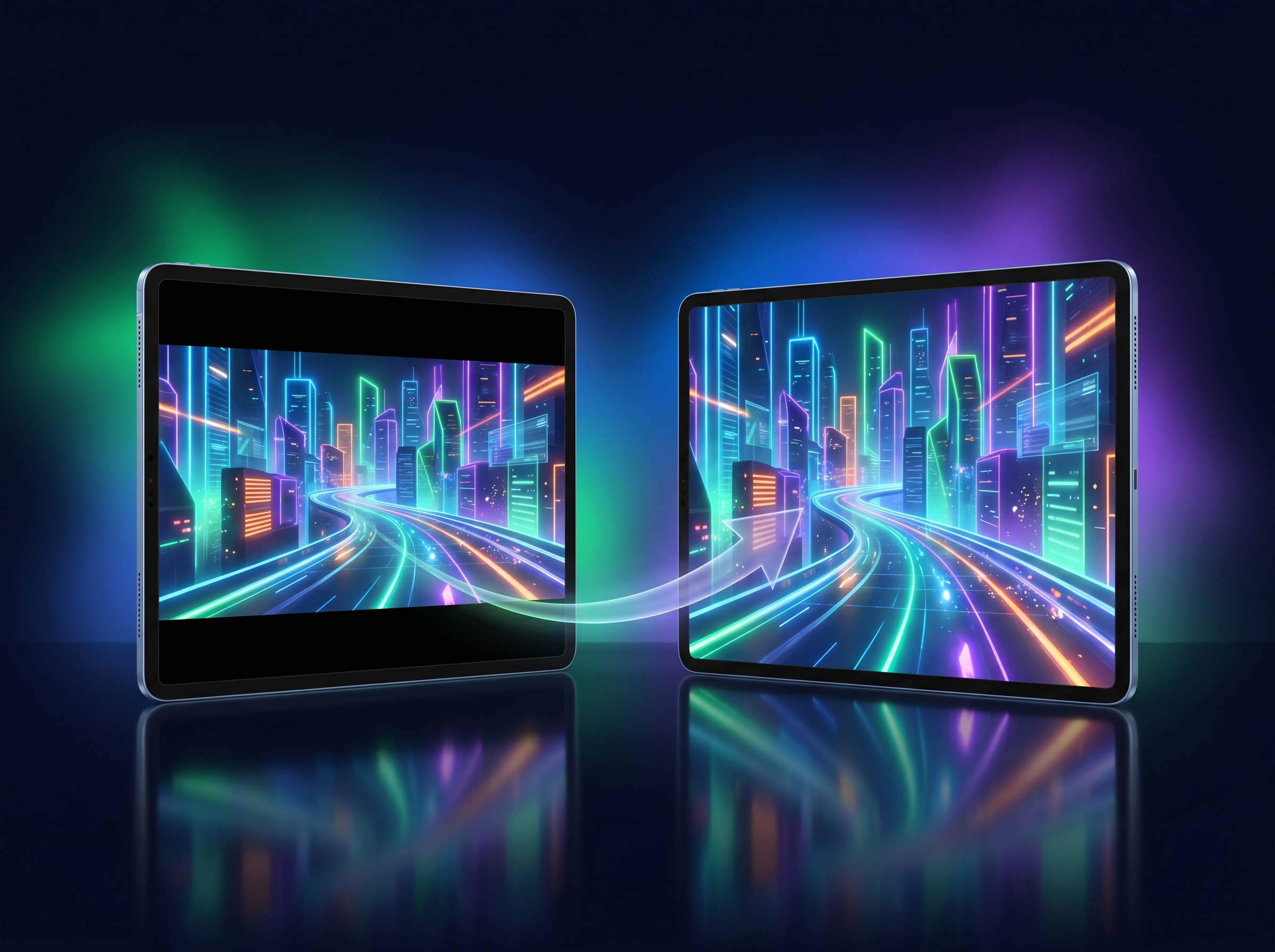
HDR is supported, and what matters is that your Apple TV is set to output HDR. If you have an HDR TV, it is almost certainly set up that way already, in which case HDR games play in HDR with nothing more to do, and SDR content is tone-mapped by tvOS.
You can check under Settings › Video and Audio › Format on the Apple TV. If it is on an SDR format, either switch it to an HDR one, or turn on Match Content › Match Dynamic Range so the display can switch into HDR when a game calls for it.
HDR can look different on different TVs. If colours look wrong in an HDR game, open CloudGear’s settings on the Apple TV and switch Video › HDR mode between Default and Alternative.
Resolution and HDR are set on your iPhone; surround sound on the TV
Resolution and HDR are chosen in CloudGear on your iPhone or iPad, and they are applied at the moment the stream begins. Set them before you start a game. If the picture isn’t what you expected, change the setting on your device and start the game again.
Surround sound is chosen on the Apple TV itself. In CloudGear on the Apple TV, go to Settings › Audio › Output format and choose Surround Sound before you start a game. The default is Stereo.
If you have more than one Apple TV
An Apple TV only accepts a connection while CloudGear is open on it and showing its waiting screen. Any other Apple TV in the house will simply not answer, because CloudGear is not running on it.
That makes choosing between them straightforward: open CloudGear on the Apple TV you want to play on, and start your game from your iPhone or iPad. That TV is the one that responds.
If a game opens on the wrong TV, it is almost always because CloudGear was left open on that one. Back out of CloudGear there and it will stop offering itself.
Controllers
Pair game controllers to the Apple TV itself, not to your iPhone. On the Apple TV, go to Settings › Remotes and Devices › Bluetooth.
Any PlayStation, Xbox, or MFi controller works, with full rumble. The Valve Steam Controller is supported too, including using its right trackpad as a mouse.
During a game, open the in-game menu by holding L3 + R3 on your controller for 1 second, or by pressing Back/Menu on the Siri Remote.
Select Gamepad mouse in the menu to turn the controller’s mouse pointer on or off. The D-pad or left stick moves the pointer, A and B are the left and right mouse buttons, and the right stick scrolls. The Siri Remote’s touchpad also moves the pointer. Press it to click, or hold it for about a second to right-click.
Apple TV cannot connect to a physical mouse directly. To play with one, use tethered mode: connect the mouse to your iPhone or iPad and its input passes through to the game on the TV.
To type into a game, open Keyboard from the in-game menu. Once a game has been handed off, you can also choose Type with iPhone or iPad to type on your iOS device’s keyboard.
Troubleshooting
My Apple TV doesn’t appear when pairing. Check that both devices are on the same local network. CloudGear finds your Apple TV over the local network, so a phone on a guest network or on mobile data will not see it. Apple TV can connect by Wi-Fi or Ethernet. Also check that CloudGear is open on the Apple TV, and that CloudGear has Local Network access on your iPhone or iPad (Settings › Privacy & Security › Local Network).
The controls feel laggy even though the video looks smooth. Turn on Game Mode on your TV. Most TVs apply picture processing that adds noticeable input lag, and Game Mode disables it. Look in your TV’s picture settings, or check whether the HDMI input the Apple TV uses has its own game preset.
The video stutters, or I see a “Wi-Fi Performance Issue” warning. Streaming is sensitive to network quality, and far more sensitive to jitter than video streaming is. For the most reliable results, connect the Apple TV to your router with an Ethernet cable, or move it closer to the router.
The game stopped when I locked my phone. That happens in tethered mode, where the iOS device is relaying the game. Once a game is handed off, the iOS device is no longer needed and can be locked or put away.
More help
If you are still stuck, the community on Discord and Reddit is active, and you can reach us through the Support page.